The search
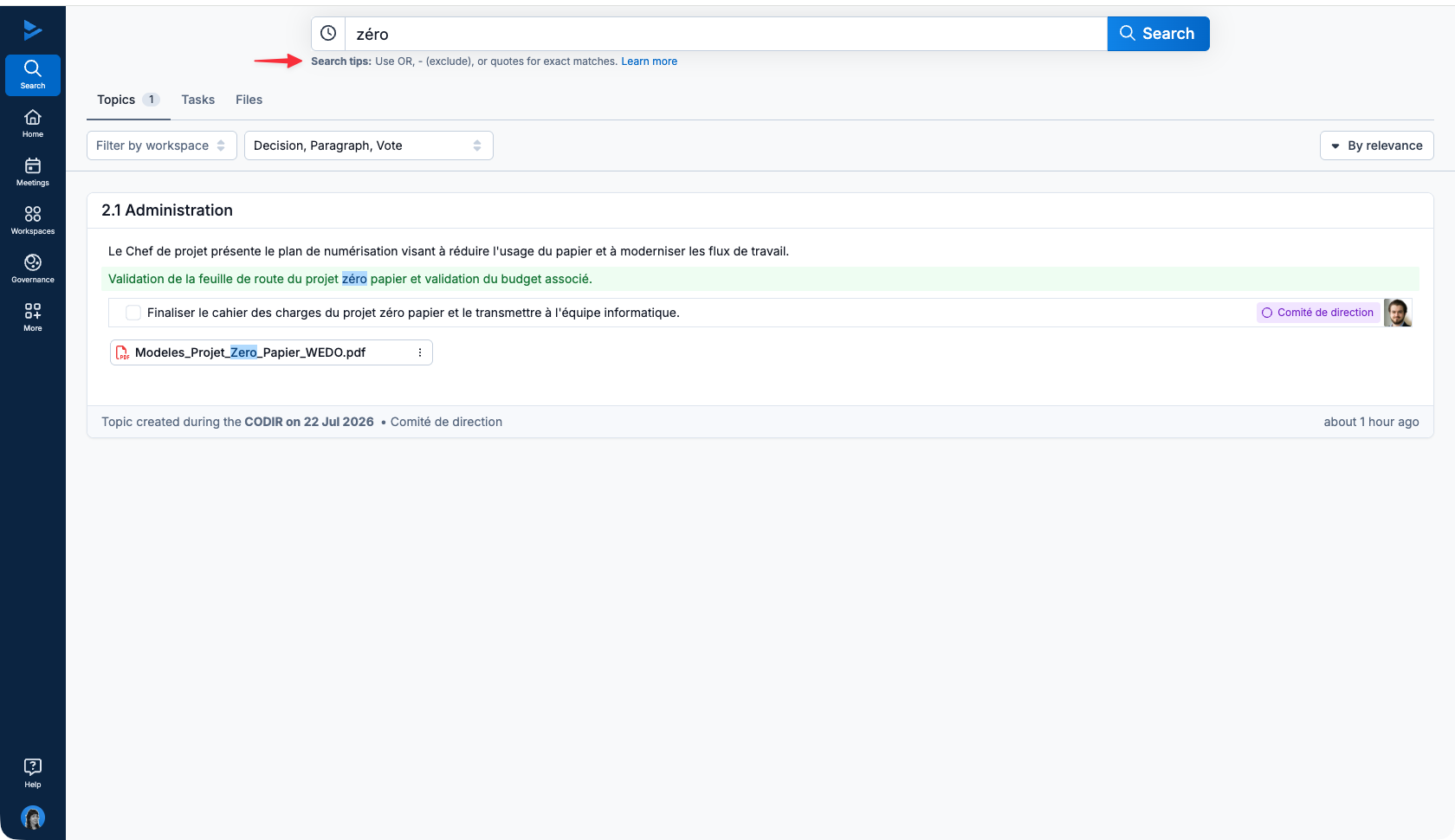
Search indexing is instantaneous! For example, if you create a task, it is directly accessible via the search tool. The same goes for searching through meetings, paragraphs, decisions or even files. In the search results, WEDO shows you the number of hits found.
💡 To refine your search, you can use OR, - (exclude), or quotes for exact matches:
project report : finds results containing all entered words.
project OR report: finds results containing at least one of the two terms.
"annual report": finds the exact phrase.
project -draft: excludes results containing the term "draft".
Search through meeting topics
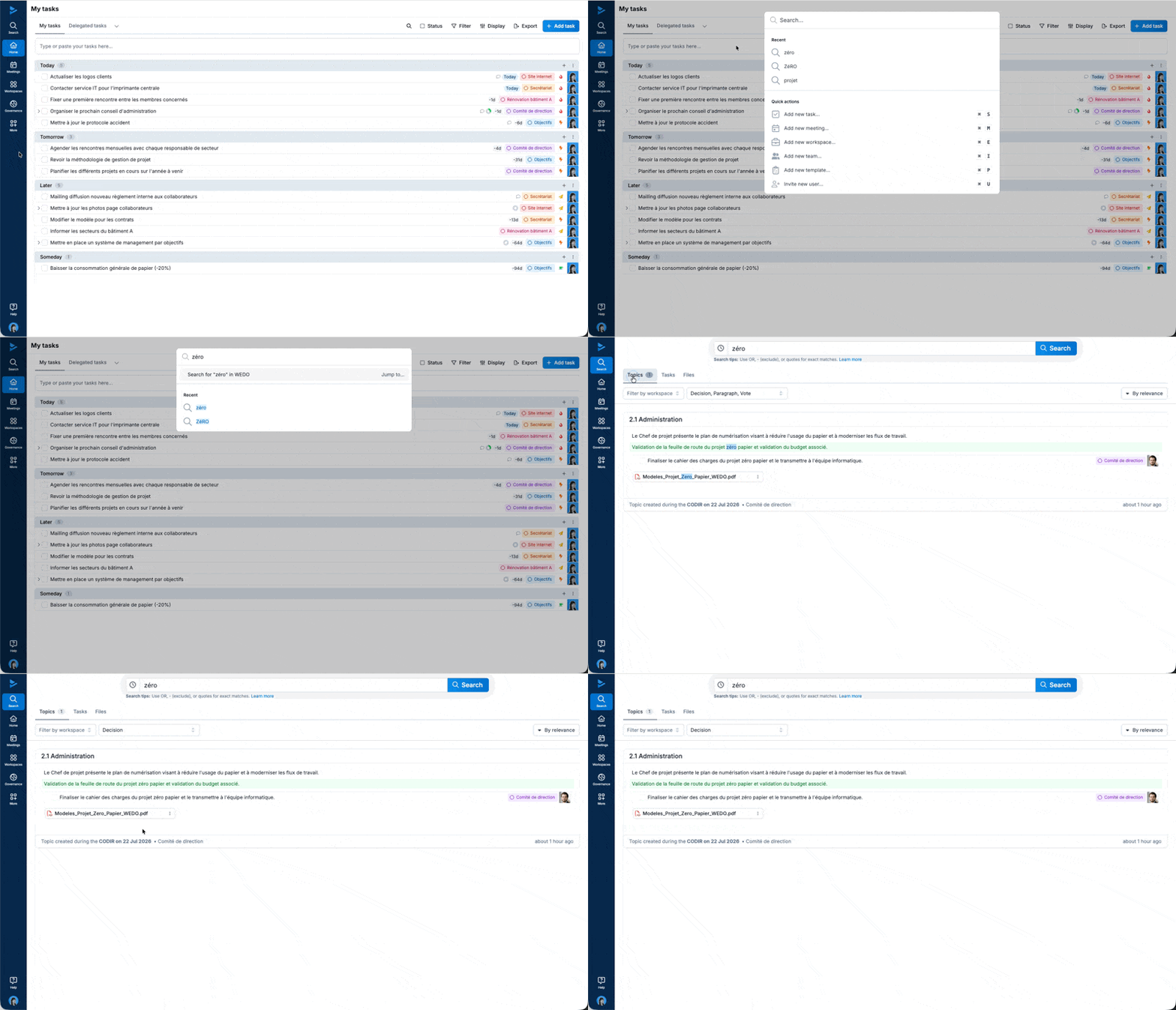
To search through the meeting topics:
Click on the search icon at the top left of the screen
Enter the keyword in the search bar
Select the Topic tab
The meeting topics containing the keyword are displayed on the screen
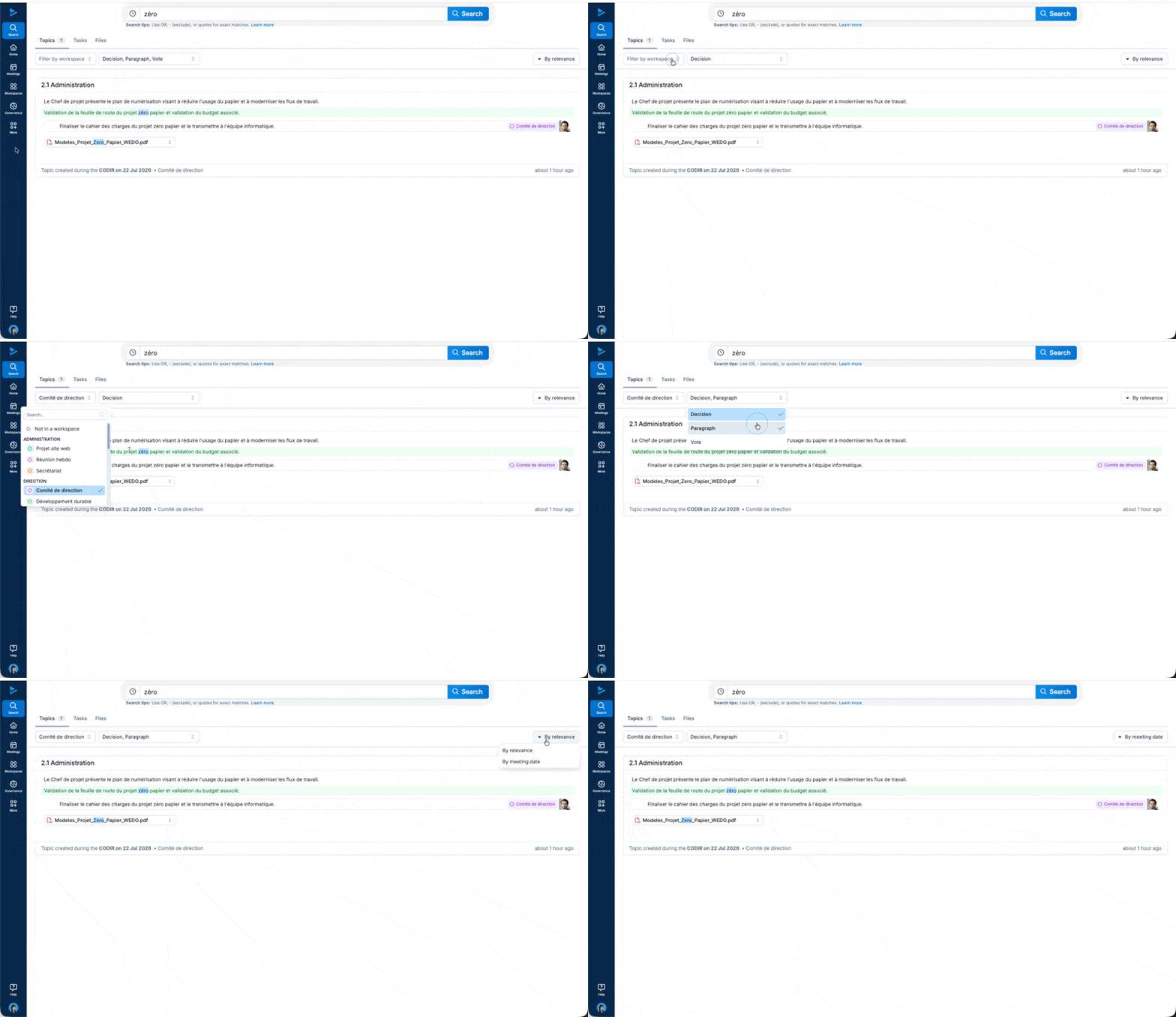
You can filter search results by workspace, meeting block type (Decision, Paragraph, Vote), or by relevance/meeting date.
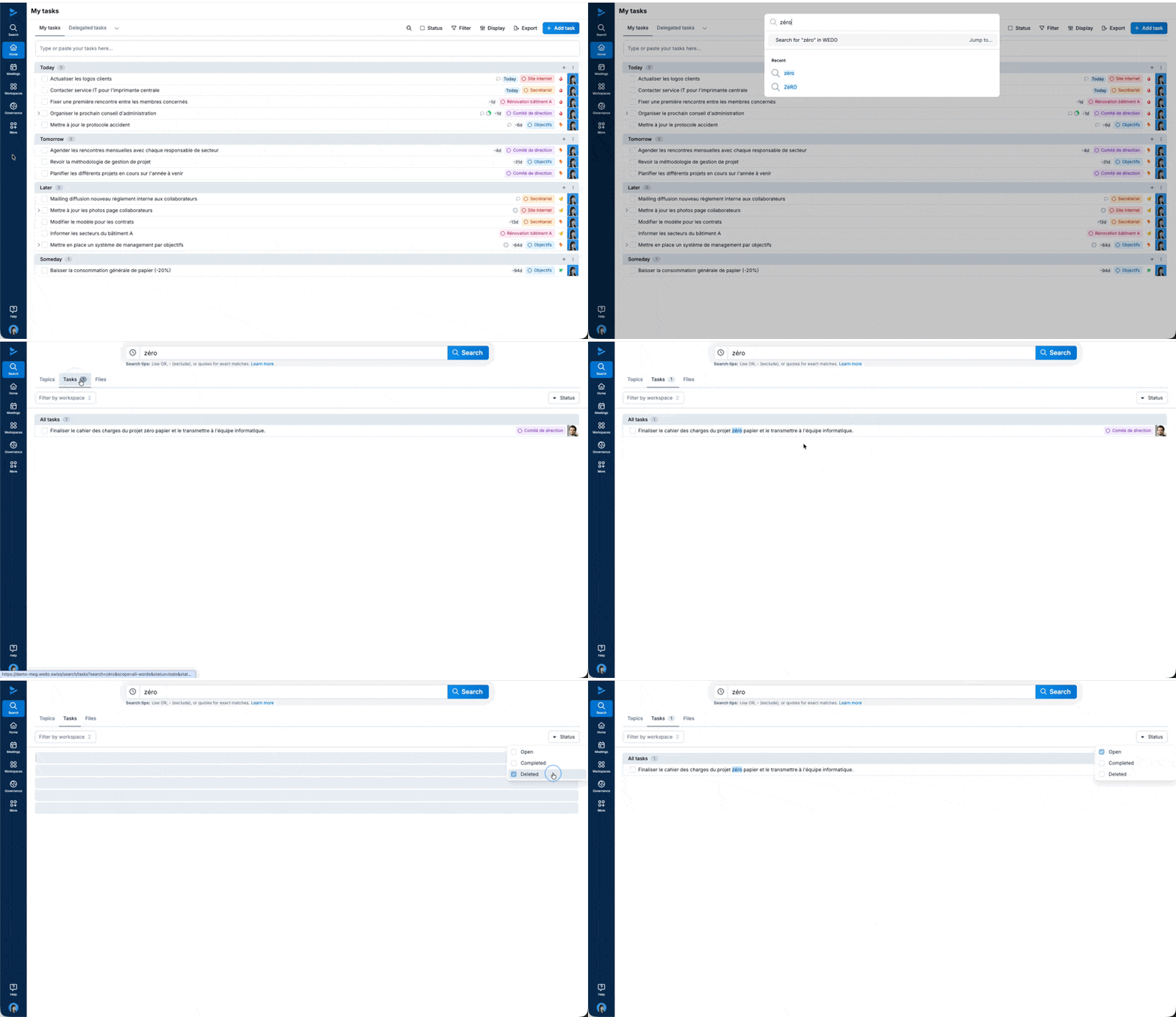
Search through tasks
To search through tasks:
Click on the search icon at the top left of the screen
Type the keyword in the search bar
Select the Tasks tab
The tasks containing the keyword are displayed on the screen
For your information, WEDO searches through Open, Completed and Deleted tasks.
Search through files
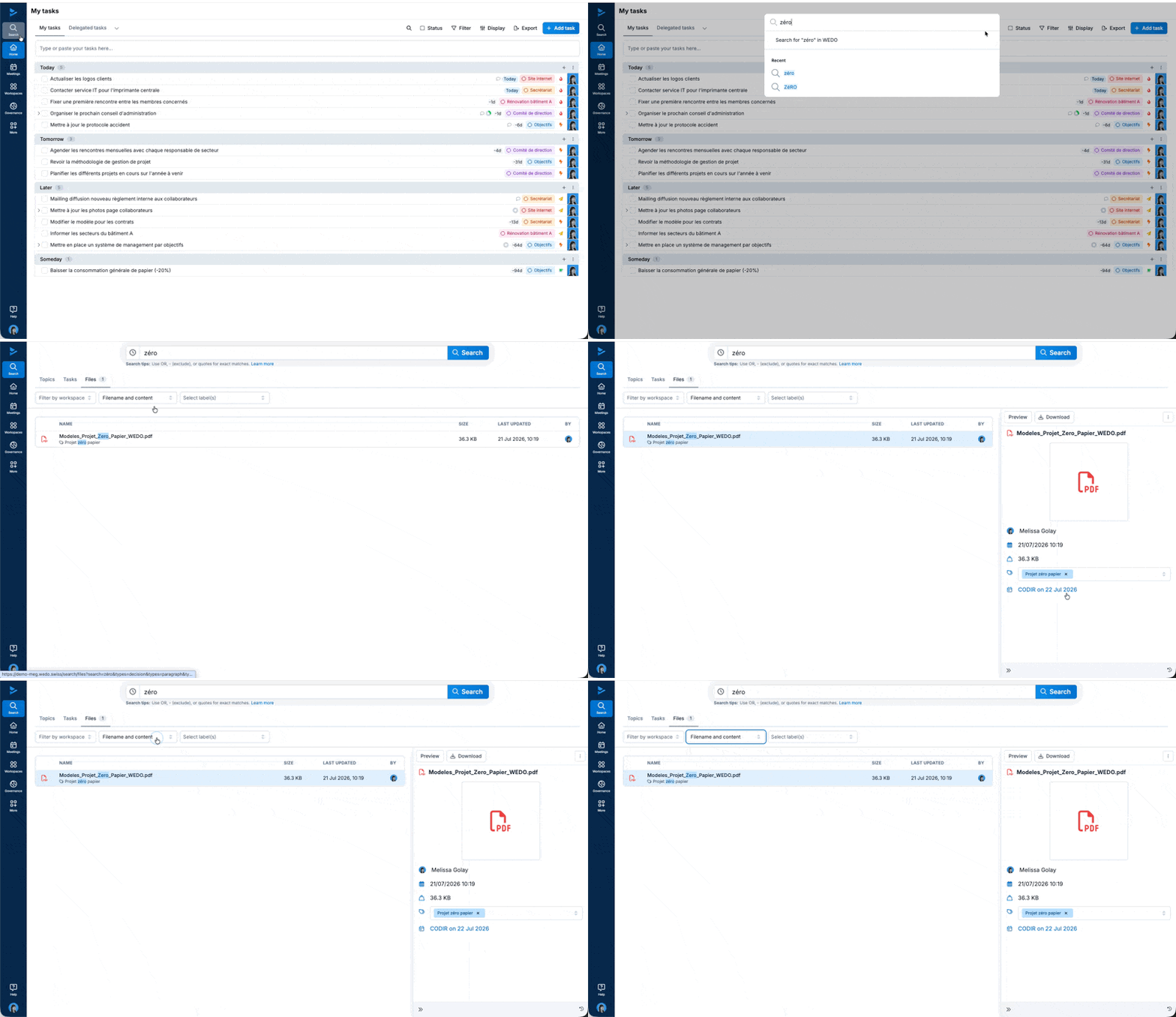
Click the search icon at the top of the main menu
Enter the keyword in the search bar
Select the Files tab
Files containing the keyword will appear on the screen
You can click on the found file to view the source it is linked to (a file attached to a task or a meeting).
You can also choose whether the search should be conducted:
Through both the file name and its content
Through the file name only