The details pane
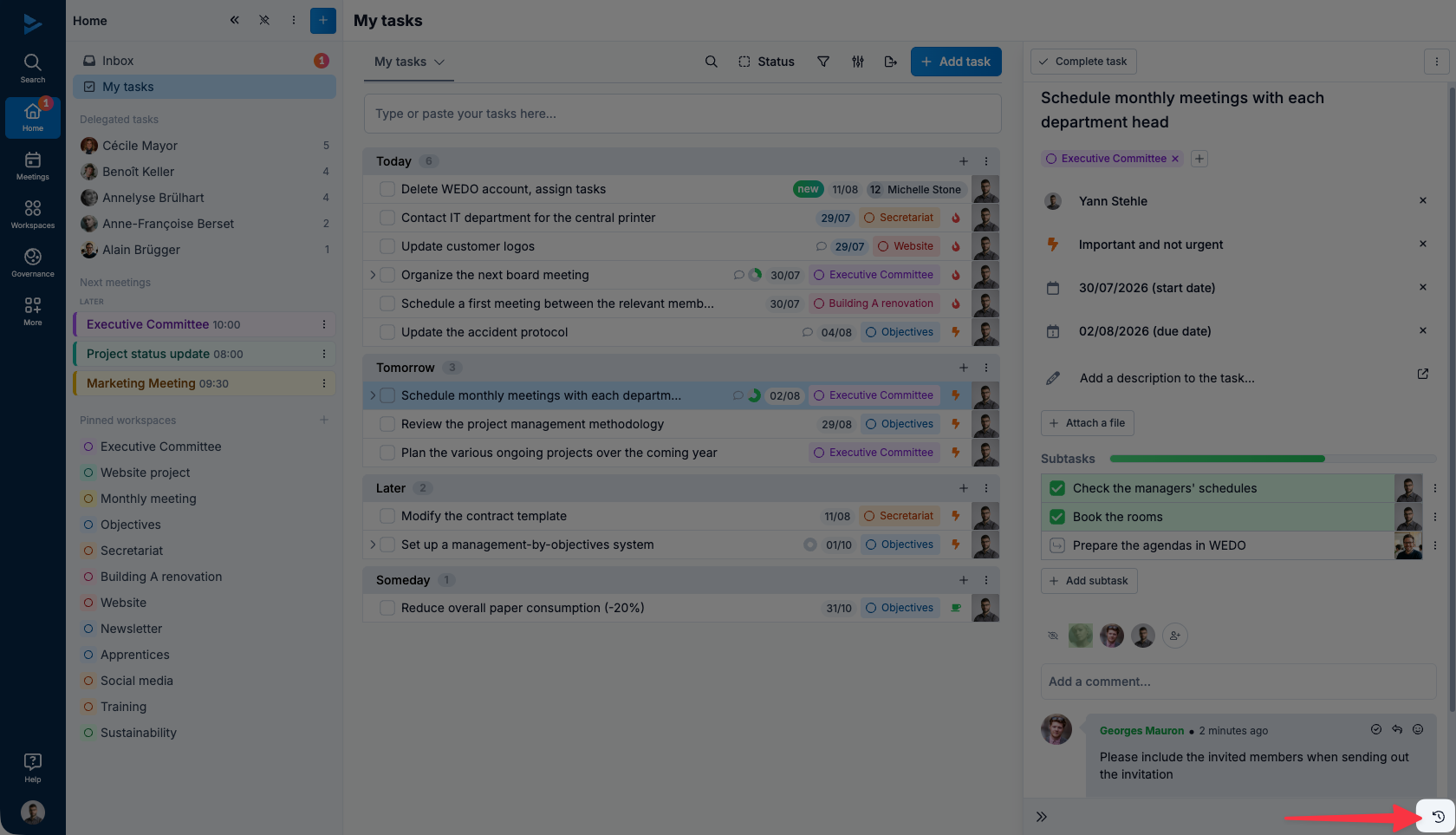
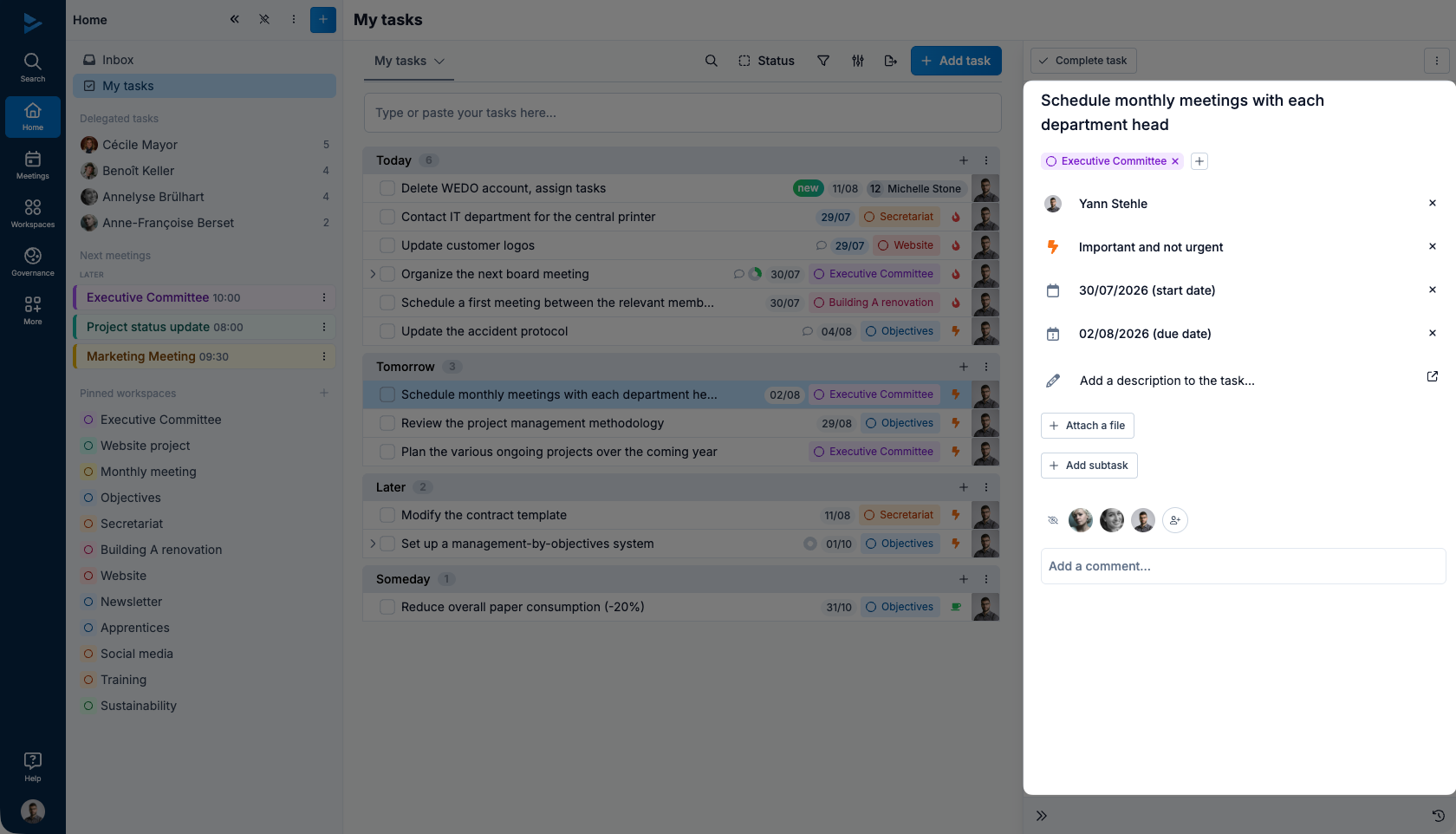
The details pane opens on the right side of the screen when you click on a task. Each task has its own detail pane.
Task name
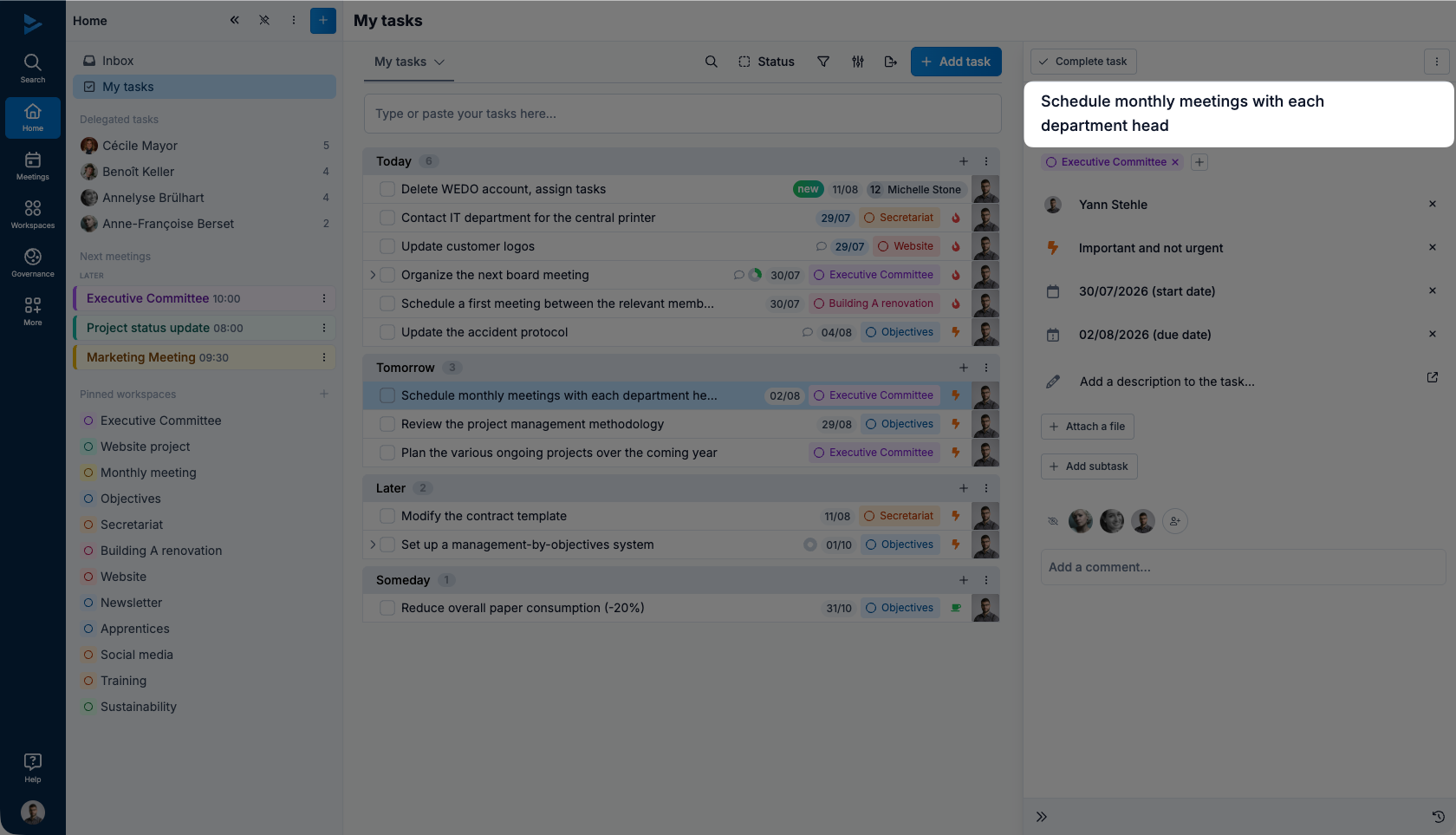
The first field in the details pane allows you to change the name of the task. Click the field and enter the changes, which are saved automatically.
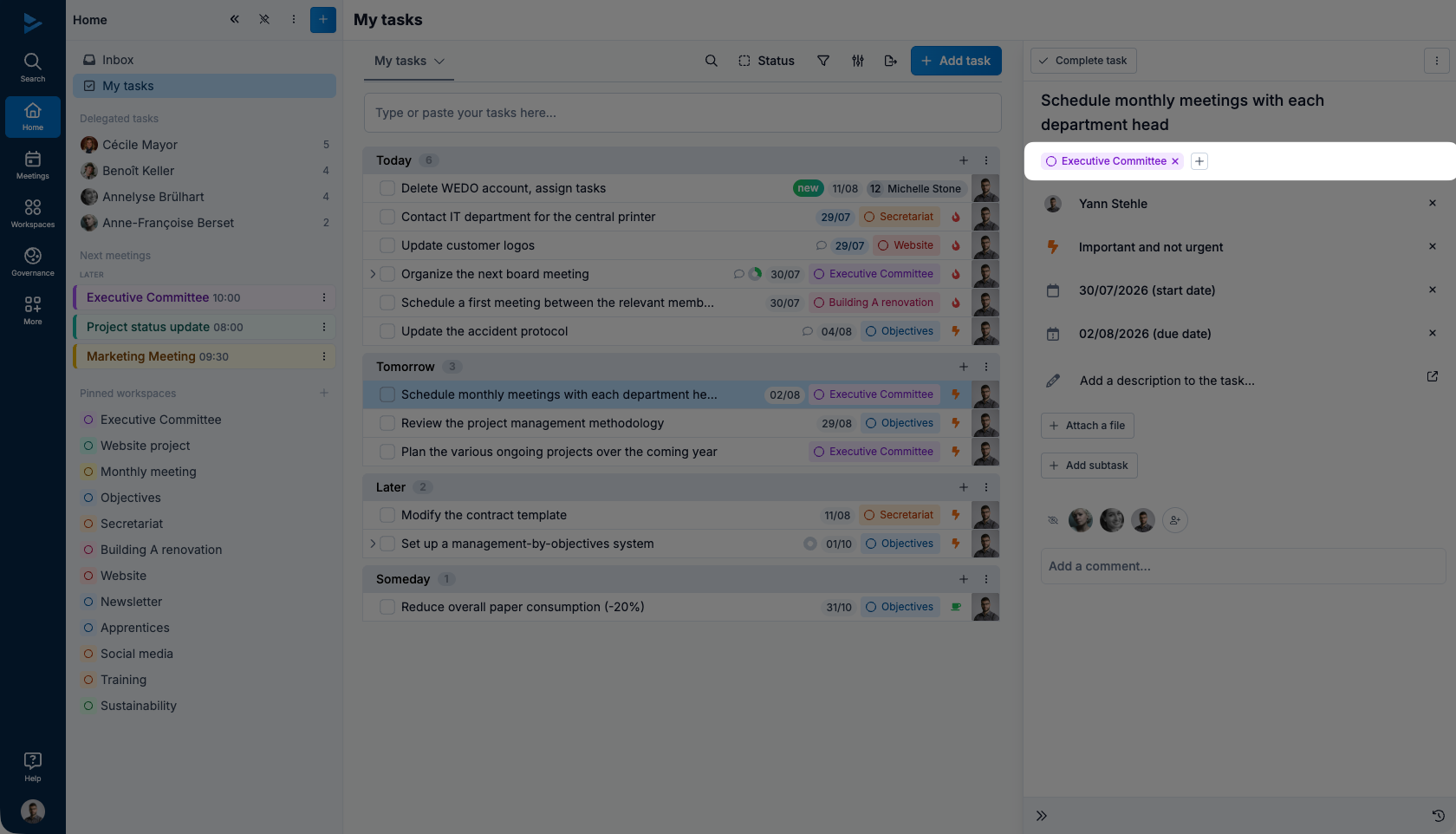
Share task in a Workspace
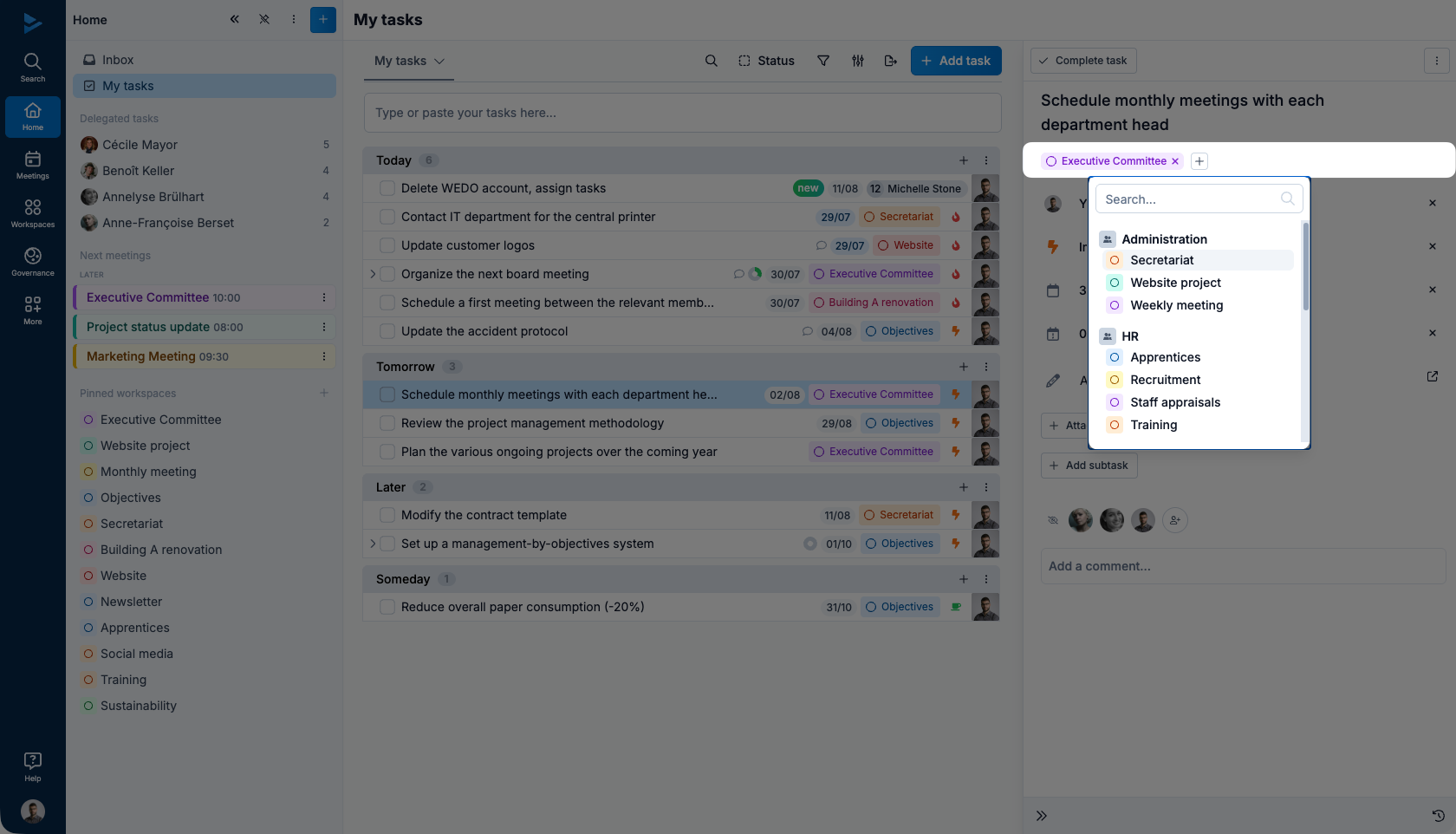
The second field in the details panel shows to which workspace(s) the task is affiliated. To share the task with another workspace, click on the + and select the workspace in question.
Delegate to
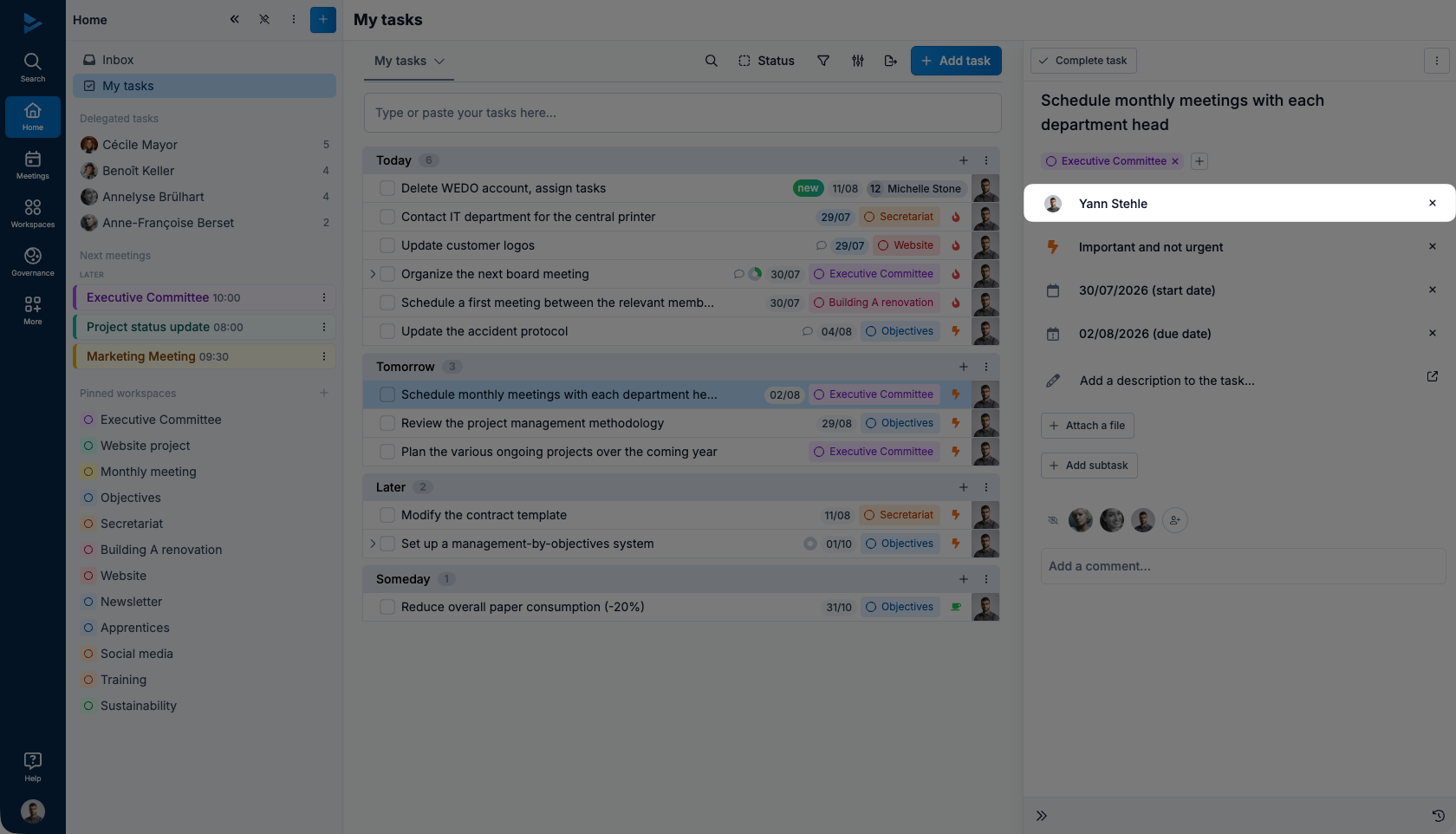
The second field in the details pane lists the person responsible for the task. To delegate the task, click on the field and choose another person in charge.
Prioritize the task
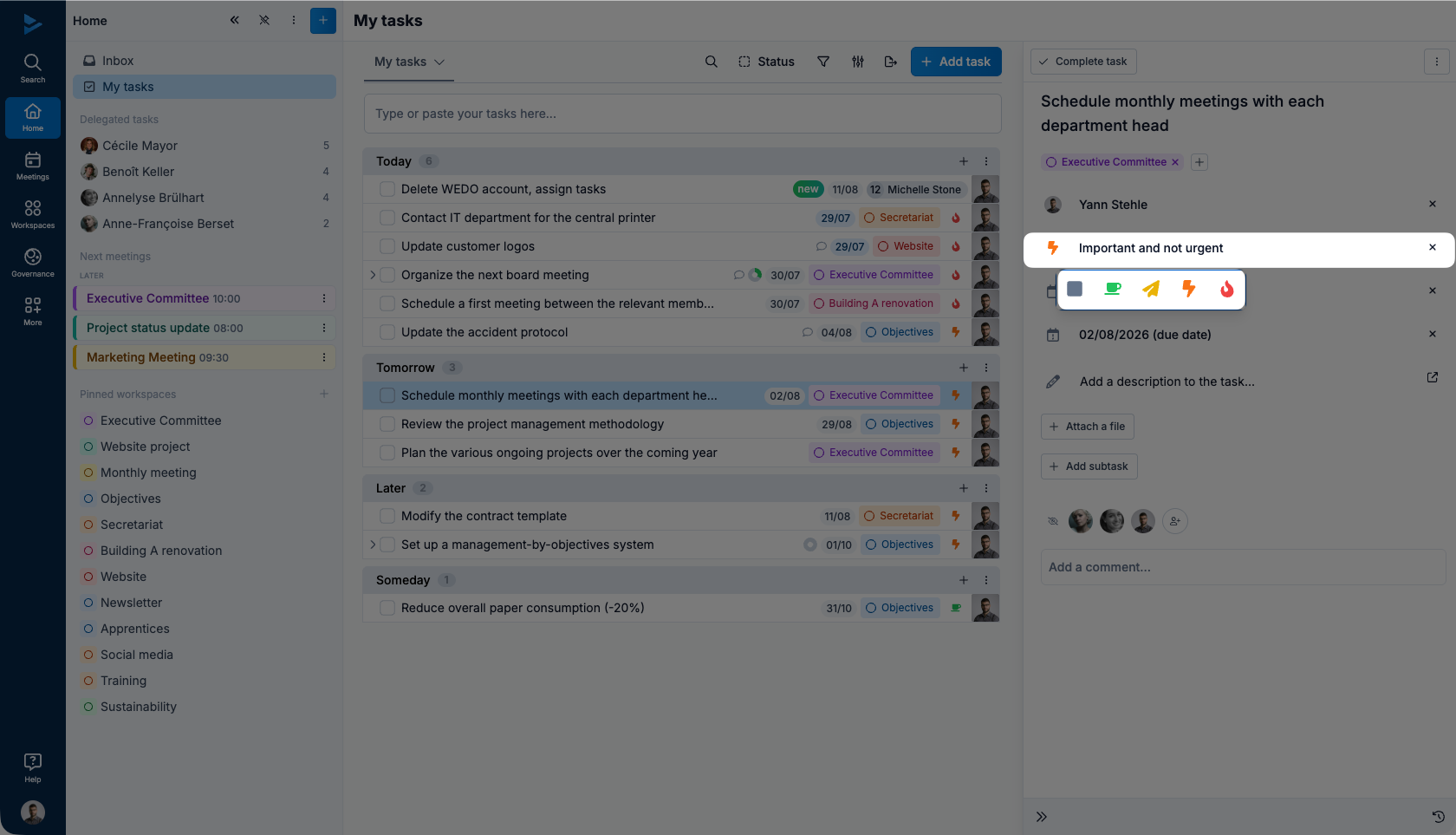
The fourth field is used to prioritize tasks, using the integrated Eisenhower matrix to define what is most important and urgent.
Set start date
The fifth field in the details panel shows when the task will start. To change the start date, click on the field and enter a new date.
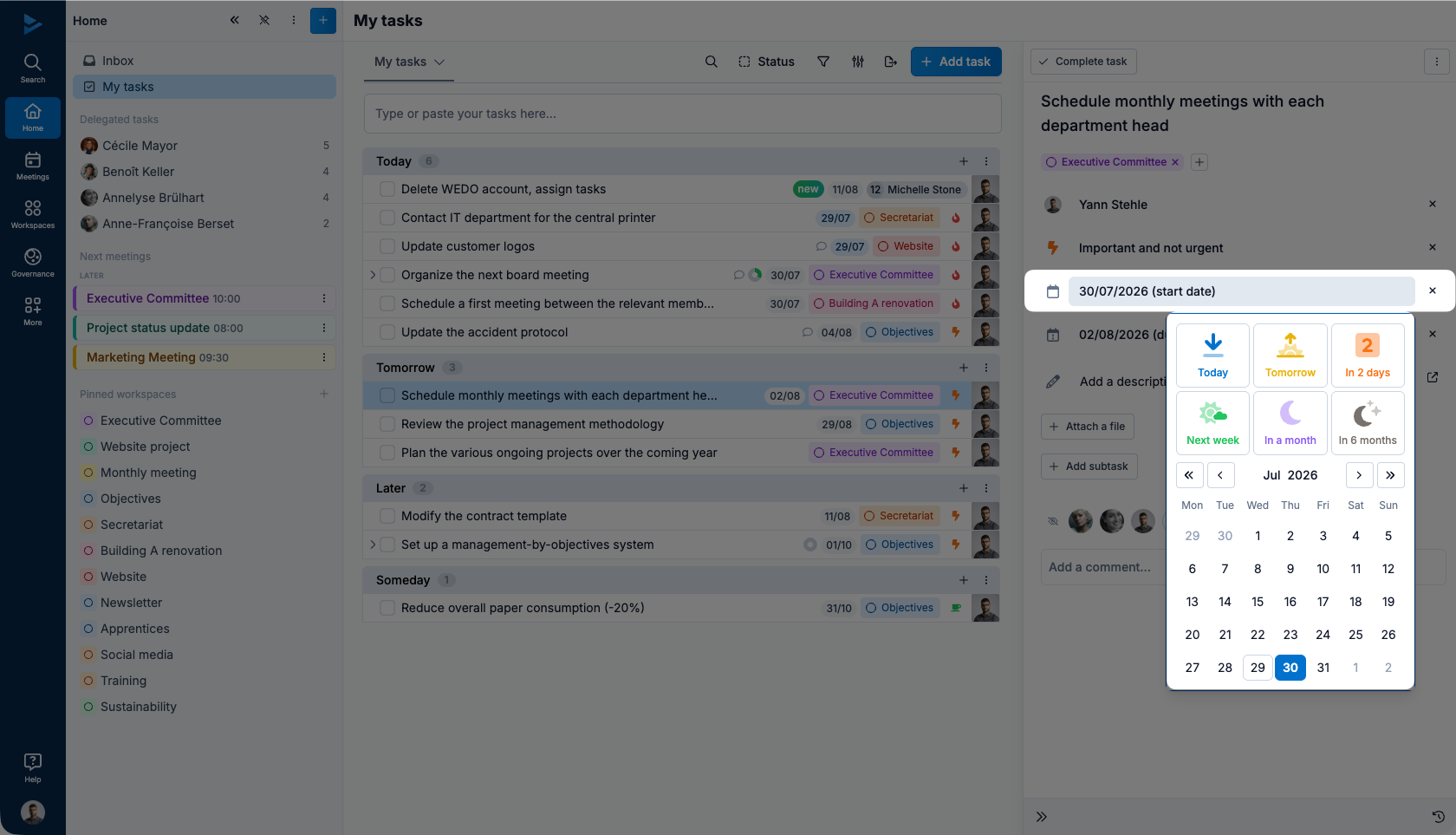
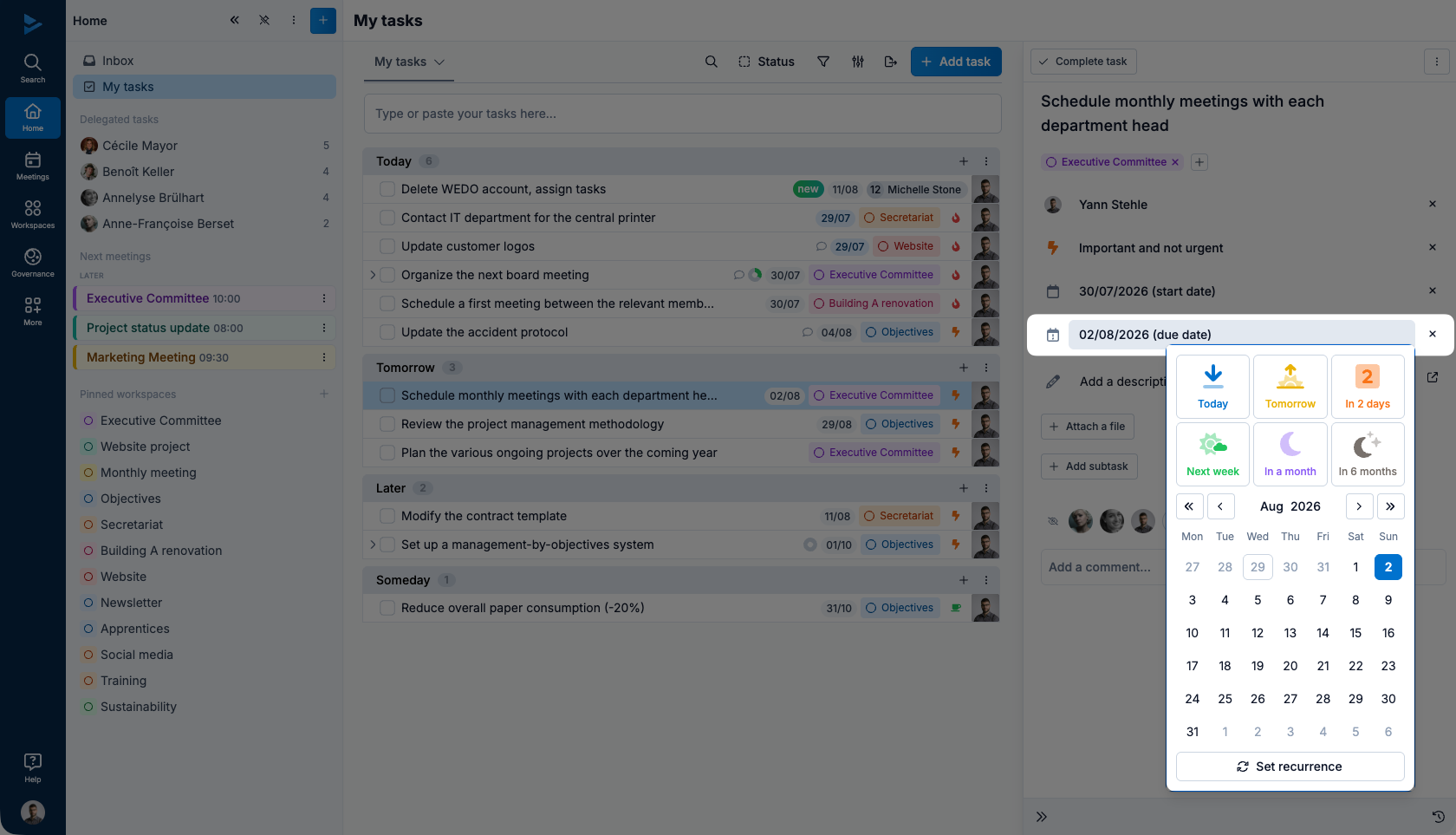
Set due date or recurrence
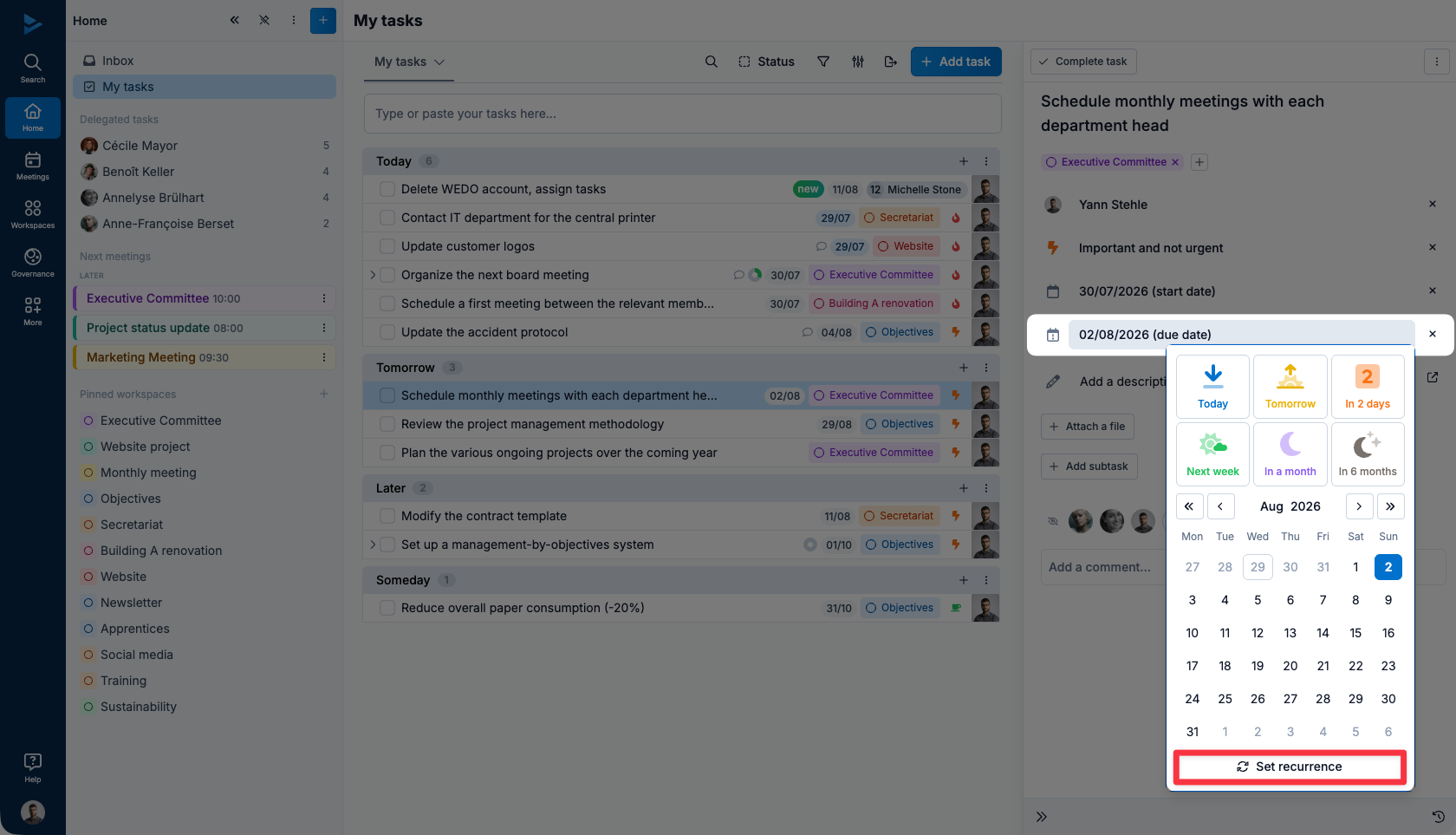
The sixth field in the details panel specifies whether the task includes :
A due date
A recurrence
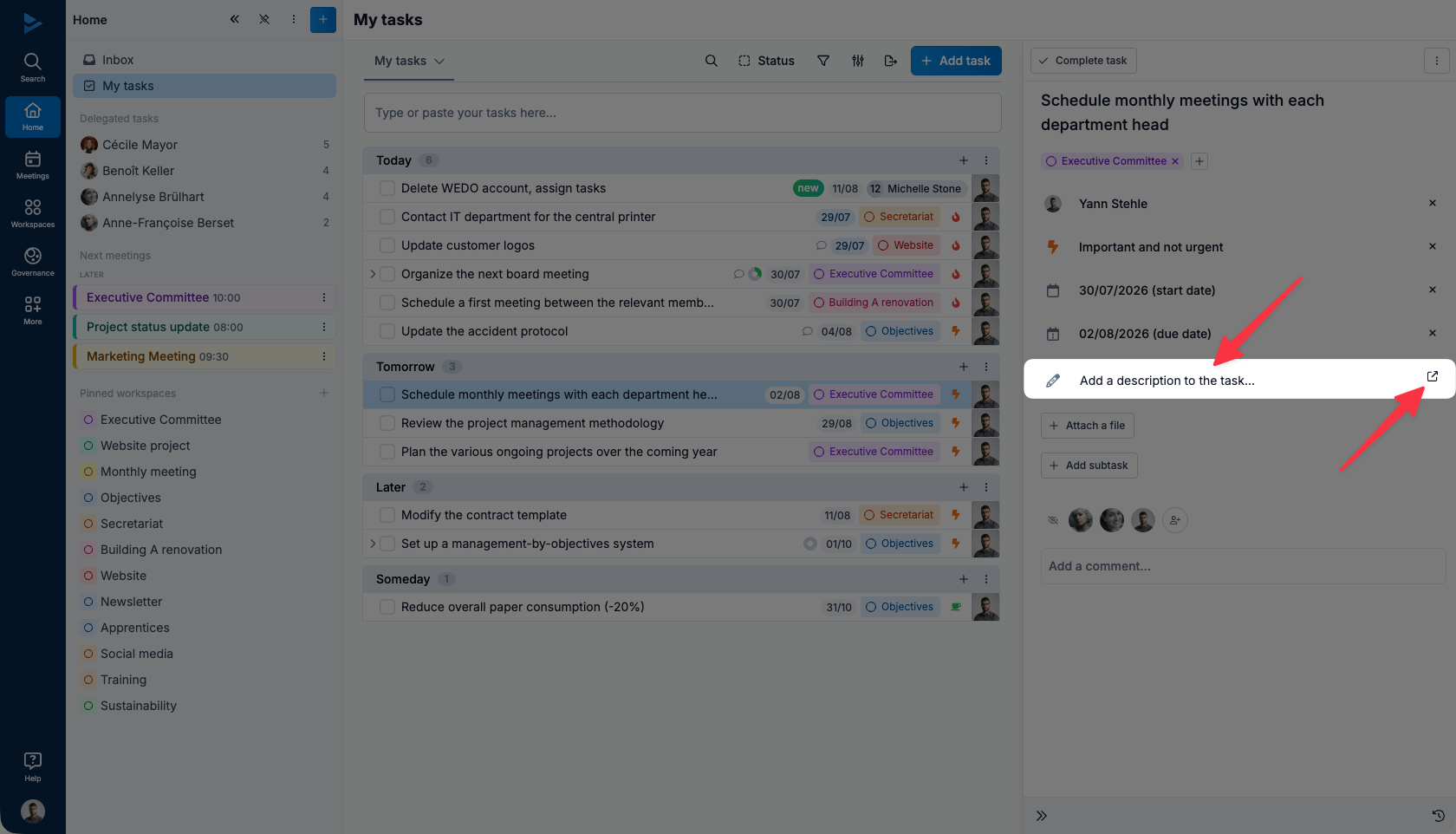
Add a description
The seventh field in the details panel lets you add a description to the task. To enter a description, click on the field and type or paste the text. The button linked to this field on the right enlarges the input space, making it easier to write long descriptions.
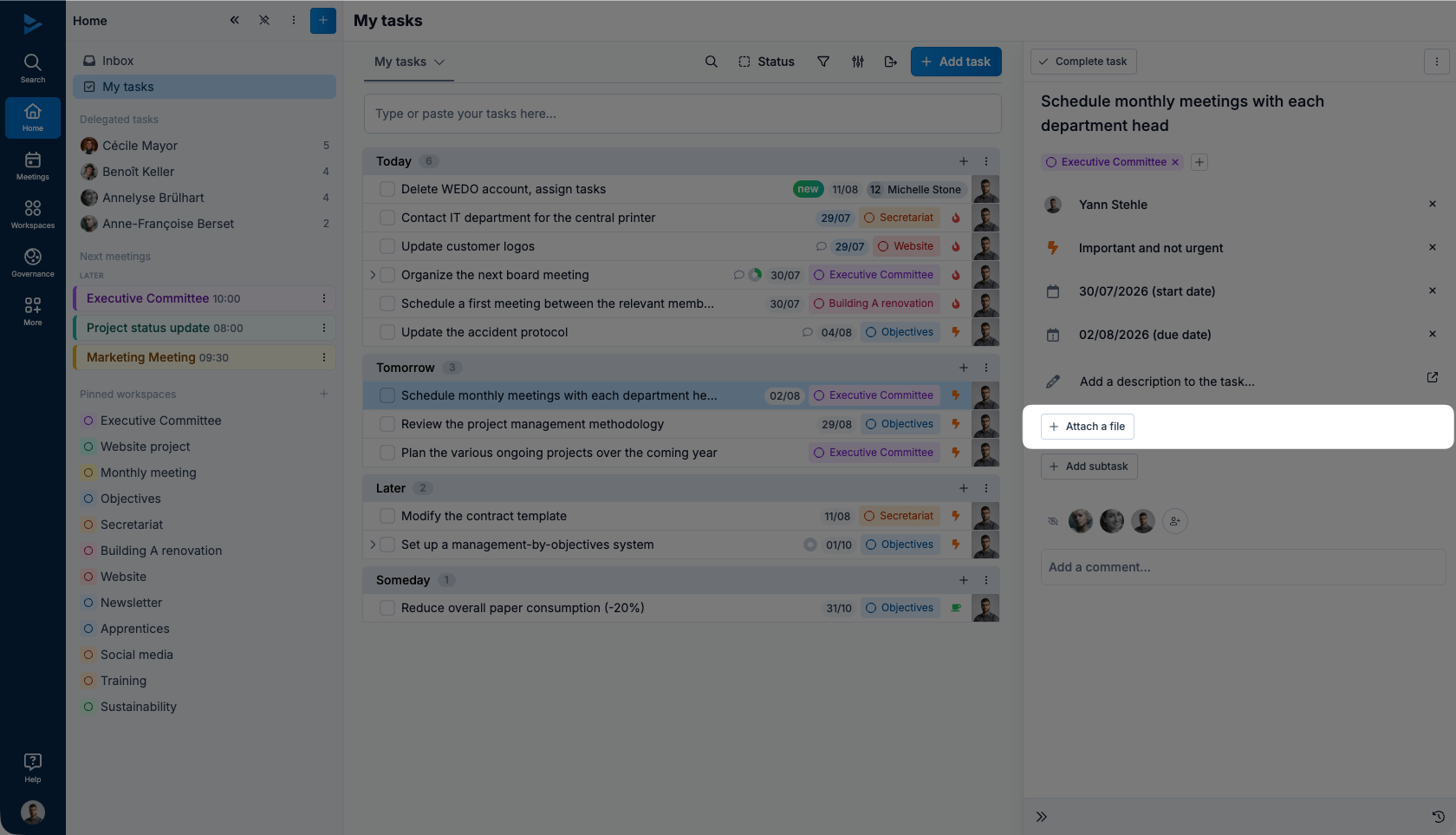
Attach a file
The eighth field in the details pane allows you to attach a file to the task. To add a file, click on the field and select the file.
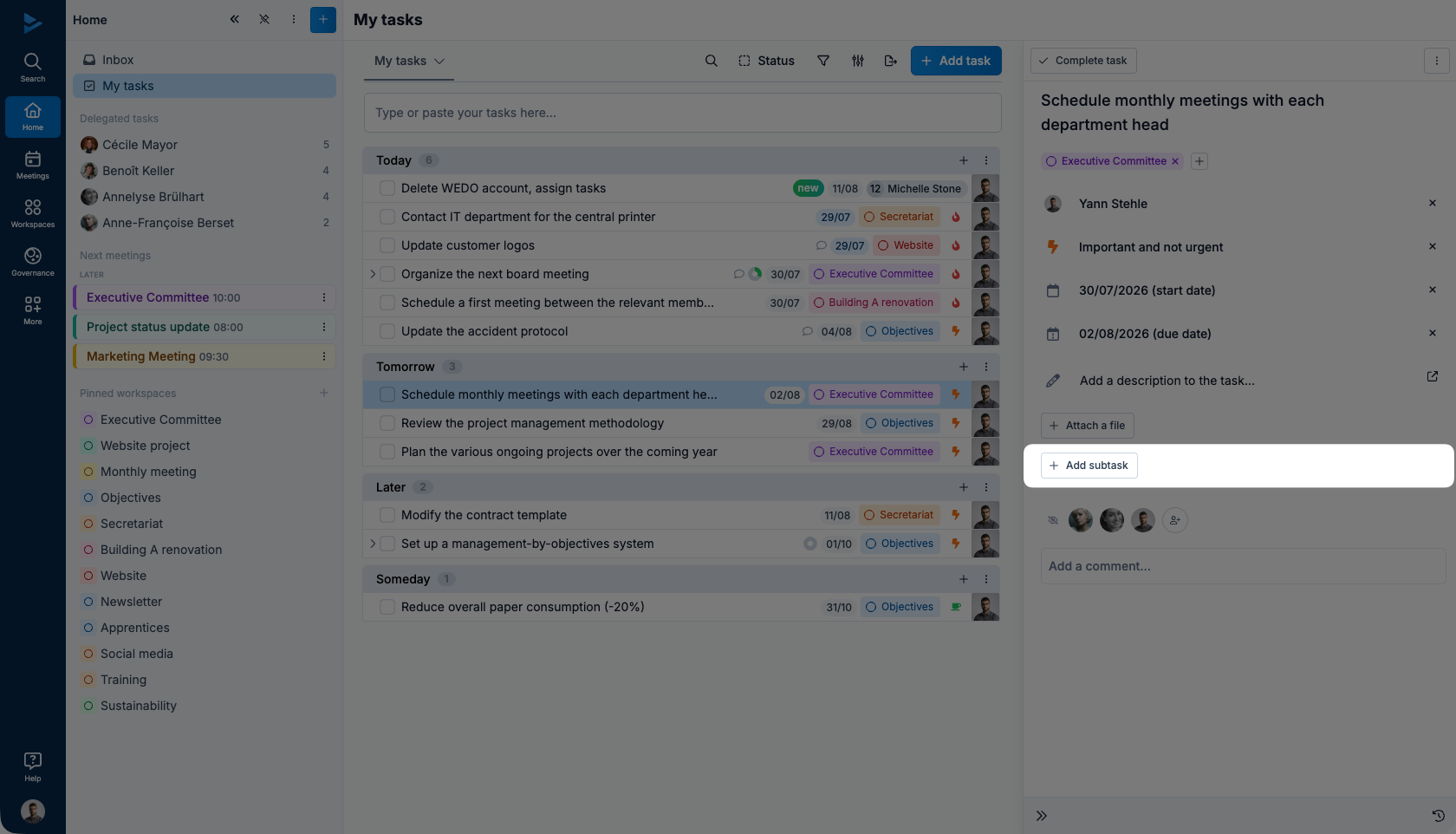
Add a sub-task
The ninth field in the details panel lets you add one or more subtasks to the task. To add a subtask, click on the field and enter the text. Use the Enter ⏎ key on your keyboard to create a subtask directly after the one you've entered.
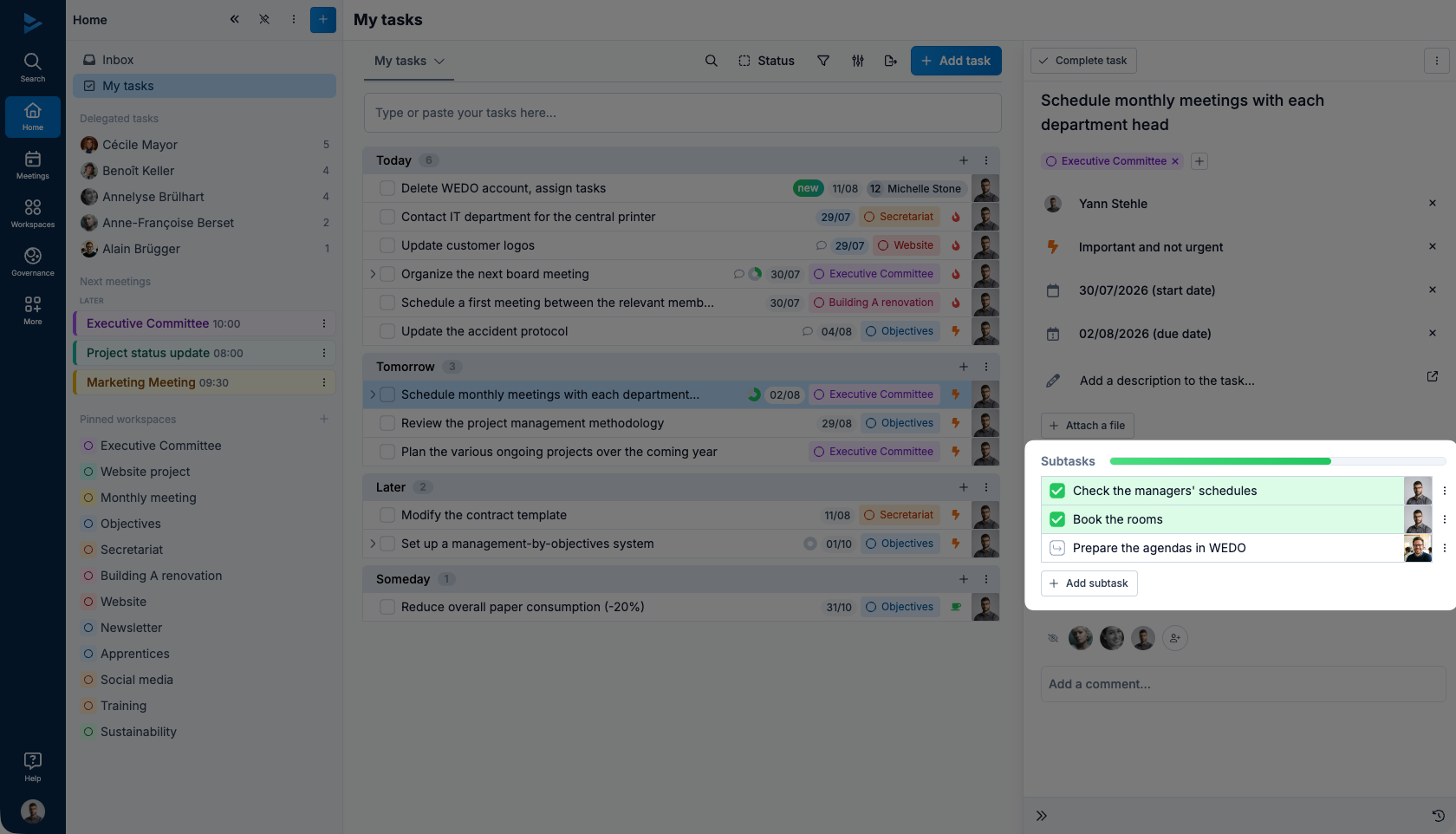
Once the sub-tasks have been entered, you can check off those that have been completed, as shown in the example below.
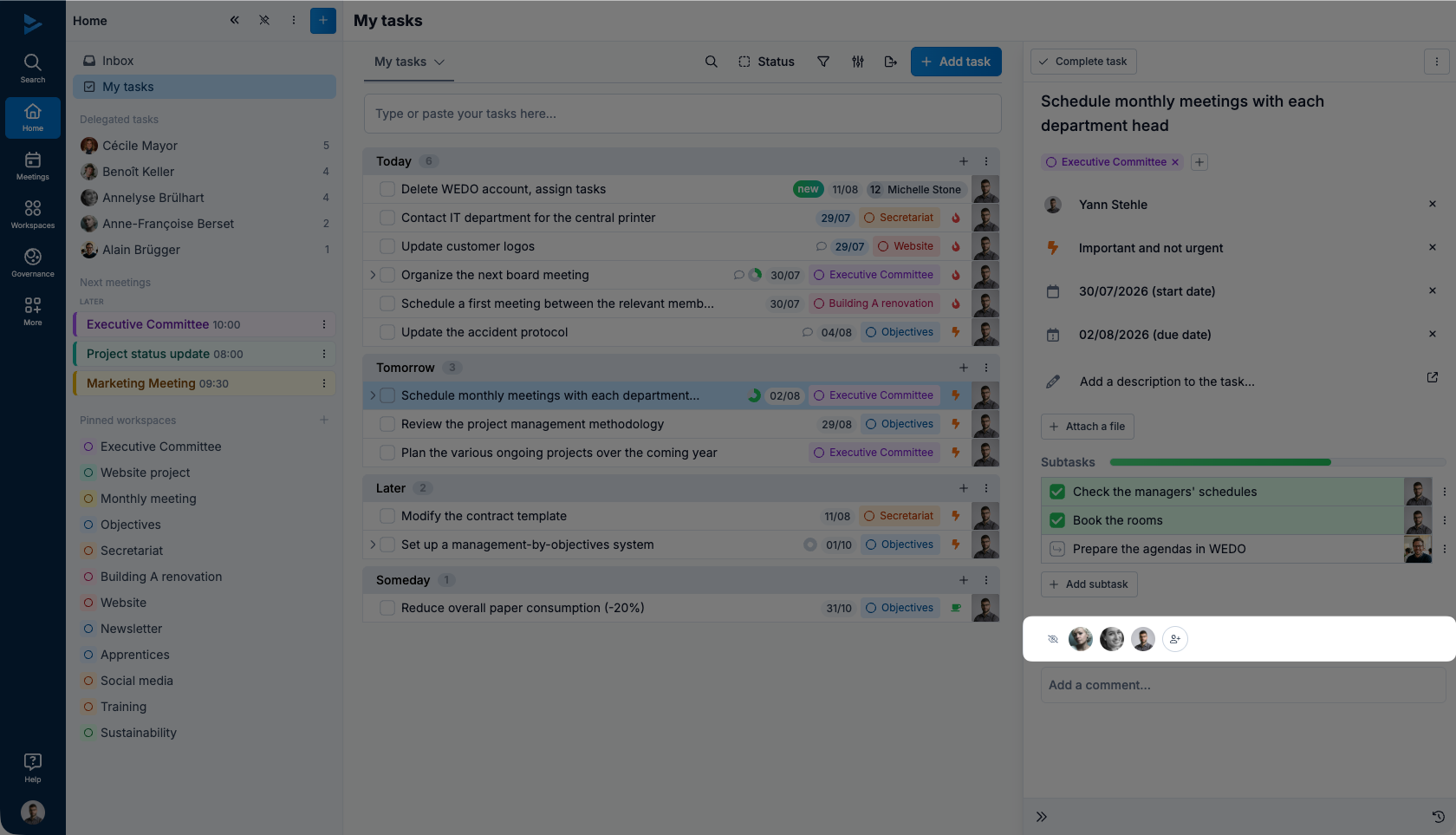
Add a Watchers
The tenth field in the details panel is used to manage the task's watchers. A task cannot have several managers. However, it is possible to add observers to the task, so that they are notified of every action concerning it.
Watchers are notified when :
The task is completed
The task is restarted
The task is deleted
The task is restored
The task is commented
The task has a new due date
The task has a new responsible
A user becomes a default watcher if :
He creates the task
He comments on the task
He delegates the task
A task is assigned to it
The user can add and remove himself as a watcher of the tasks to which he has access via a workspace. He can also remove the people he added as watcher. However, it is impossible to remove a watcher added by another user.
To add a watcher, click on the field and select another user.
Comment the task
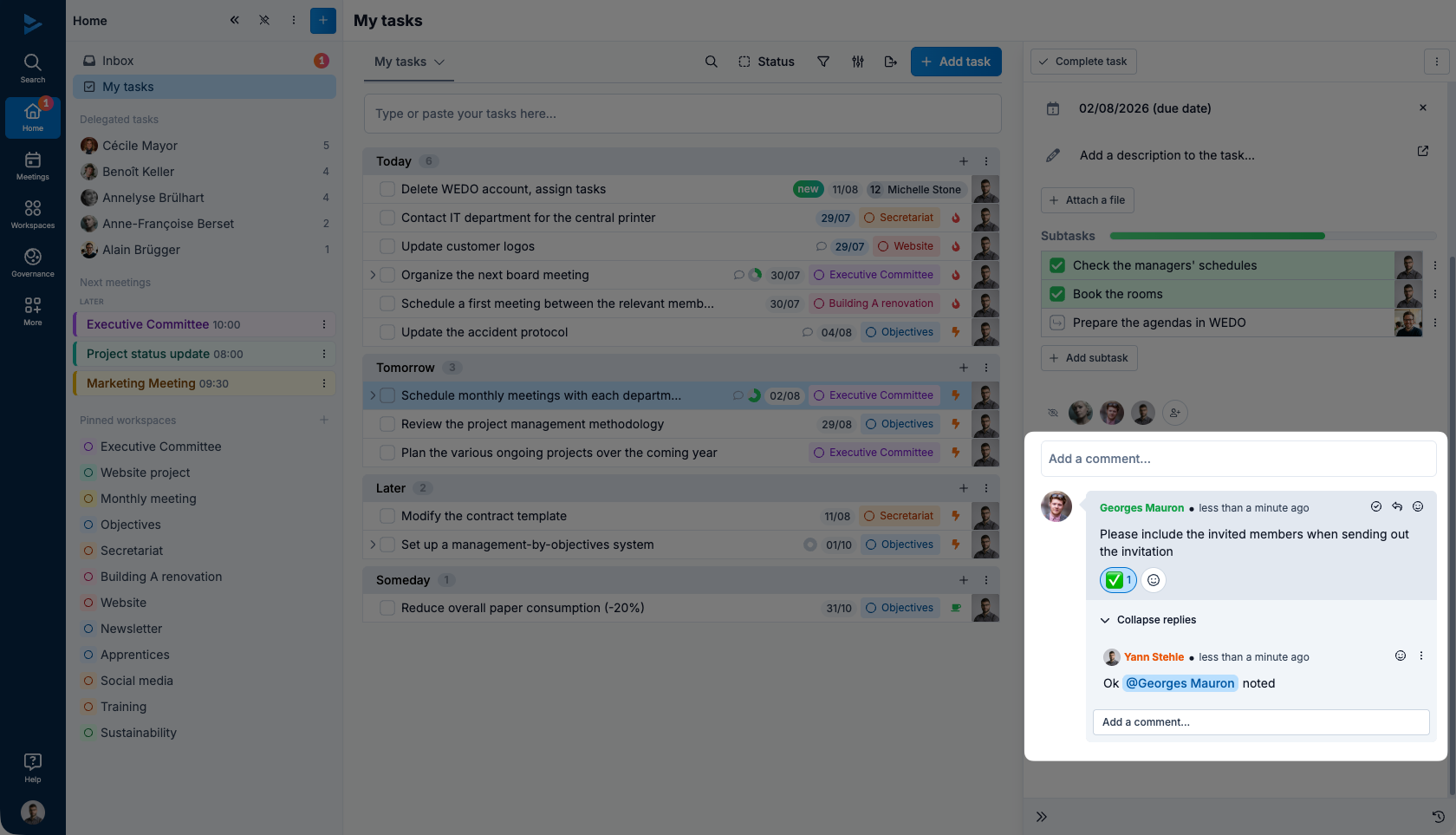
The eleventh field in the details panel lets you communicate about the task. For example, you can :
Ask a question about the task;
Bring additional information about the task;
Follow up on the task; etc.
To comment the task, click on the field, enter your comment and click on Publish or Enter↵ to validate it.
Once the comment has been entered, it is possible to modify or delete it by clicking on the three vertical dots icon or to answer it by clicking on the arrow icon.
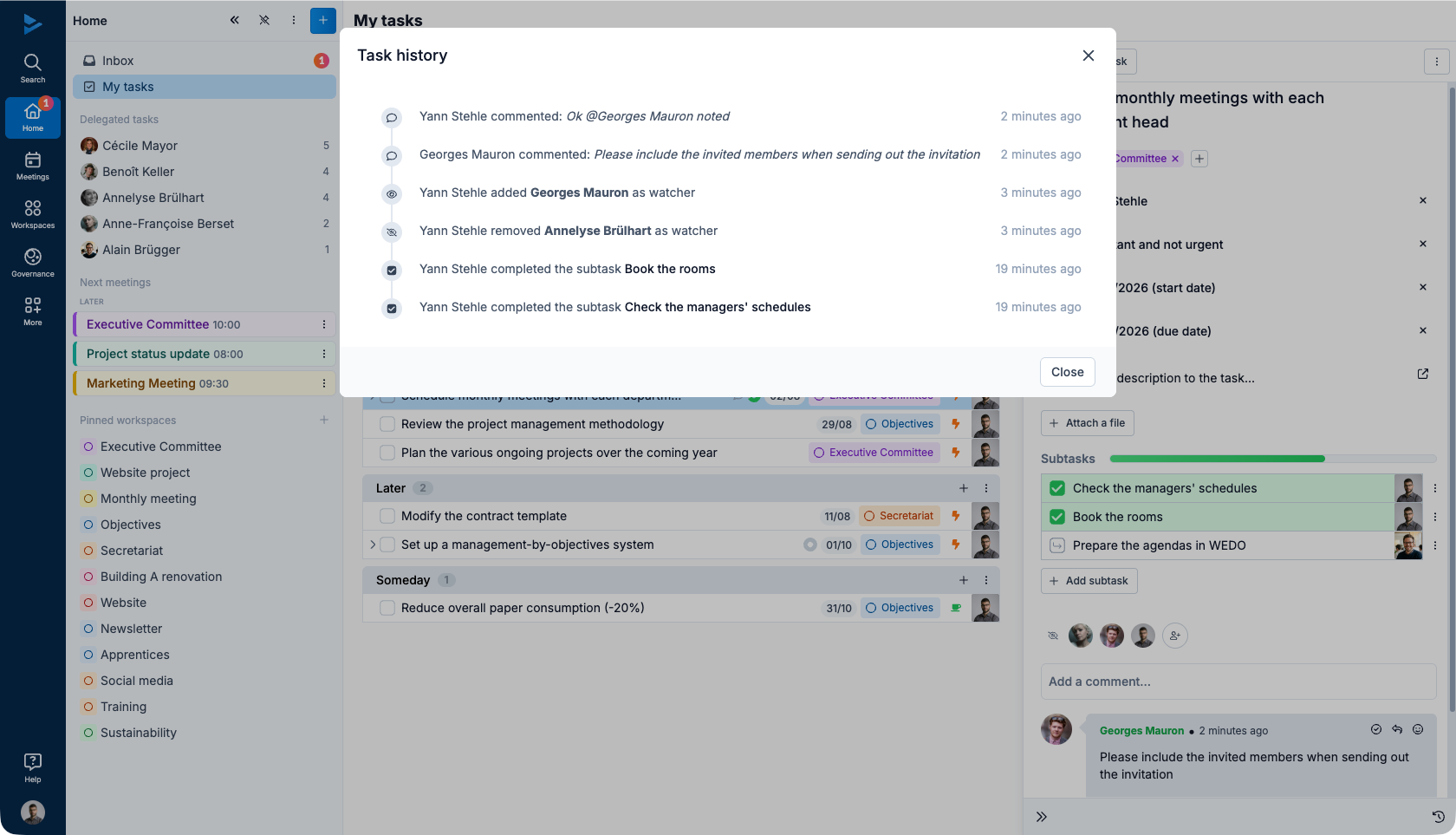
Task history
The twelfth and final field allows you to consult the history of the task. From its creation to the present day, it traces all activities and changes, ensuring total traceability.