
You can have your identity verified online for qualified electronic signature via Swisscom and its partner identHUB. However, we strongly recommend that you prioritize direct identification in a Swisscom Shop and only use the online method as a last resort.
⚠️ The online procedure is a paid service, charged by Swisscom and identHUB, while in-store identification (Swisscom Shop) is completely free.
➡️ Proceed with my authentication with Swisscom
Once on the Swisscom page, review the displayed information, then follow these steps:
Step 1: Purchase the voucher
Go to the Digital Identity Hub CH section (Payment in CHF, Service provided by ViziBit d.o.o.).
Select the desired type of signature (Qualified or Advanced).
Choose your coupon provider (the price depends on the chosen provider and the associated identification method).
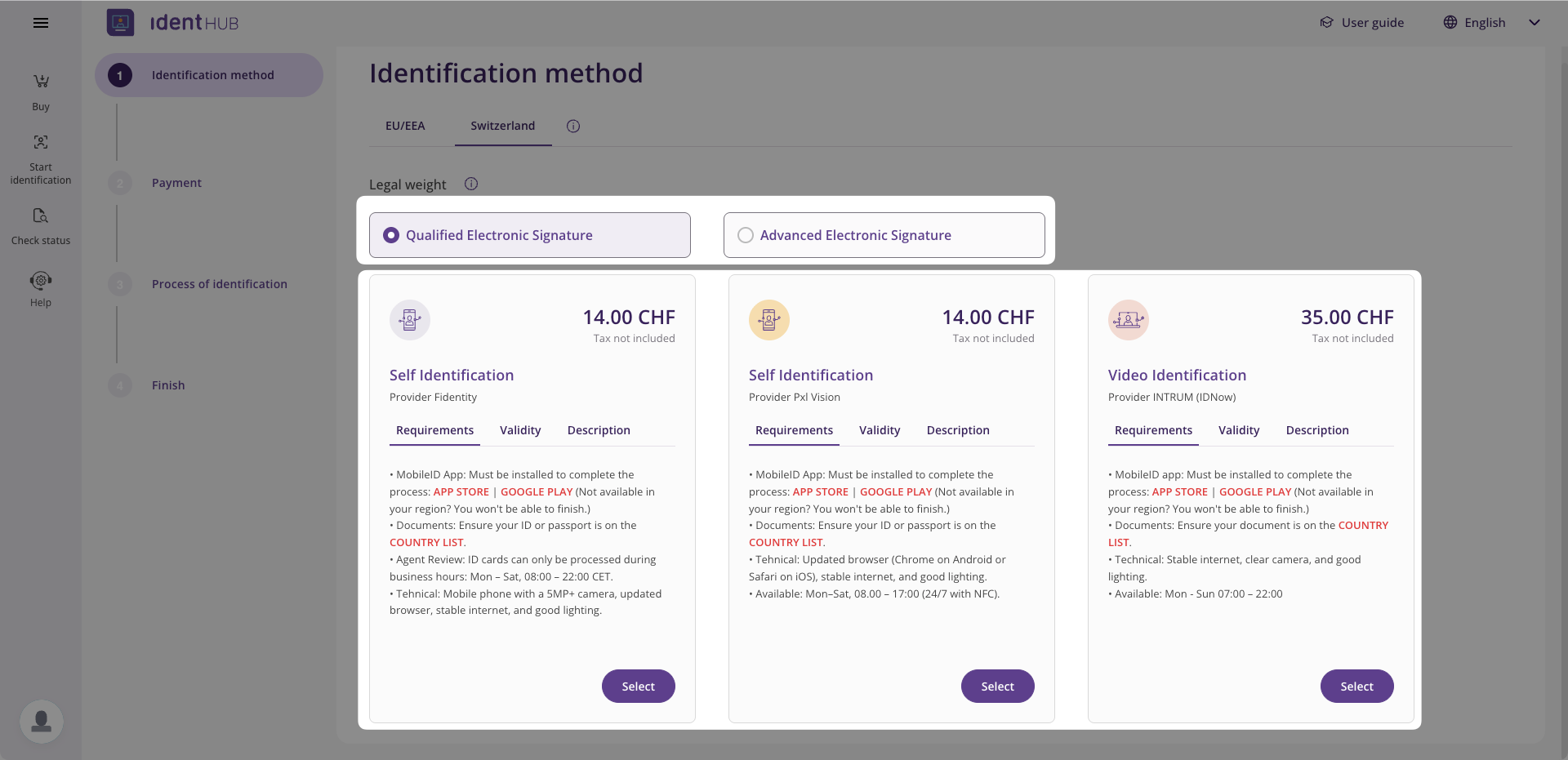
Click on "Select".
In the window that opens, indicate the number of coupons you want, then click on "Continue".
Select your payment method and click again on "Continue".
Review the information, check the Terms and Conditions box, then click on "Continue".
Enter your billing details and click on "Go to payment".
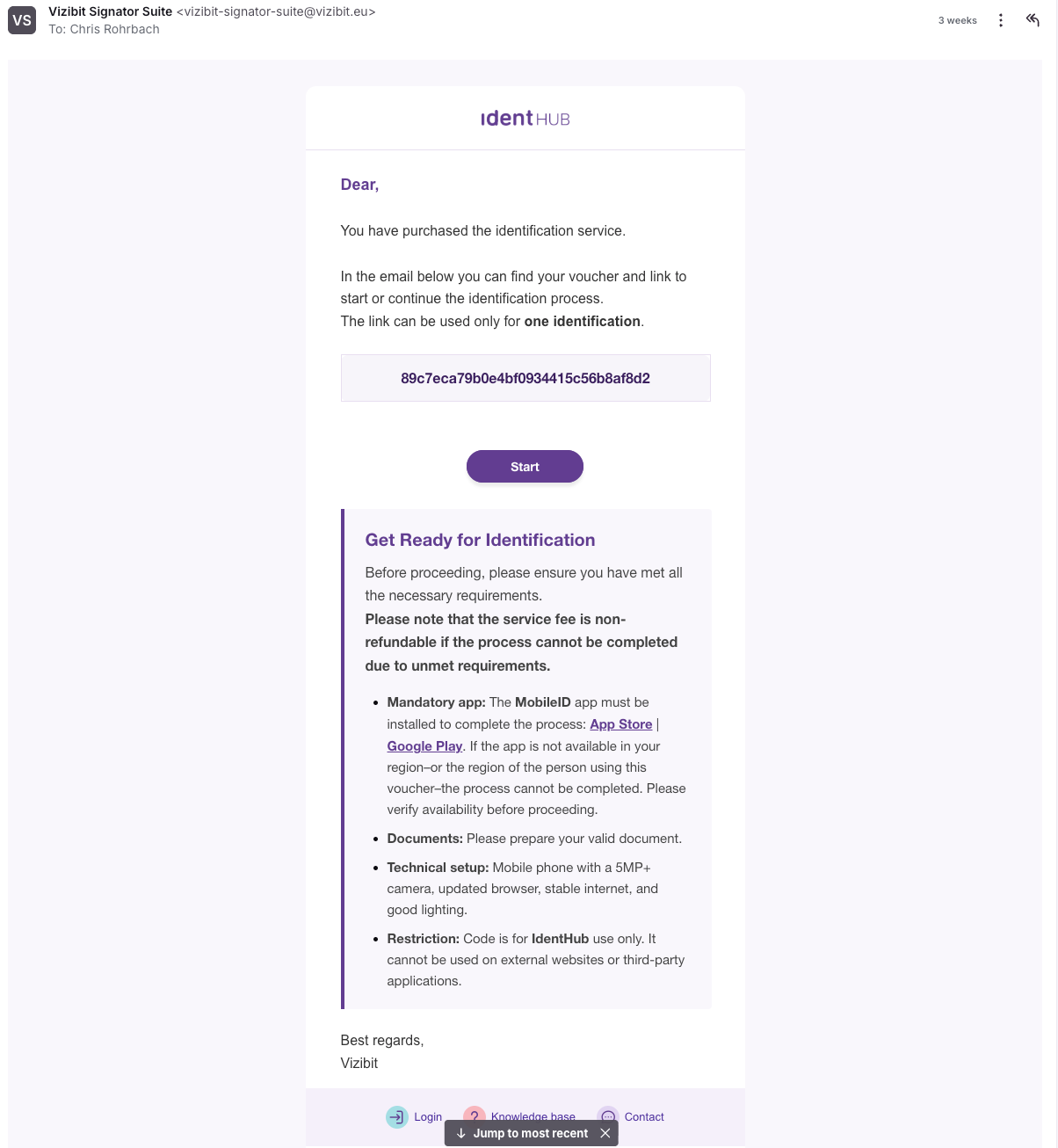
📬 Next step: You will receive an email containing your coupon code. To continue, simply click on the "Start" button included in this message.
You will be redirected to a page where you can enter your coupon (voucher) code as well as your personal information:
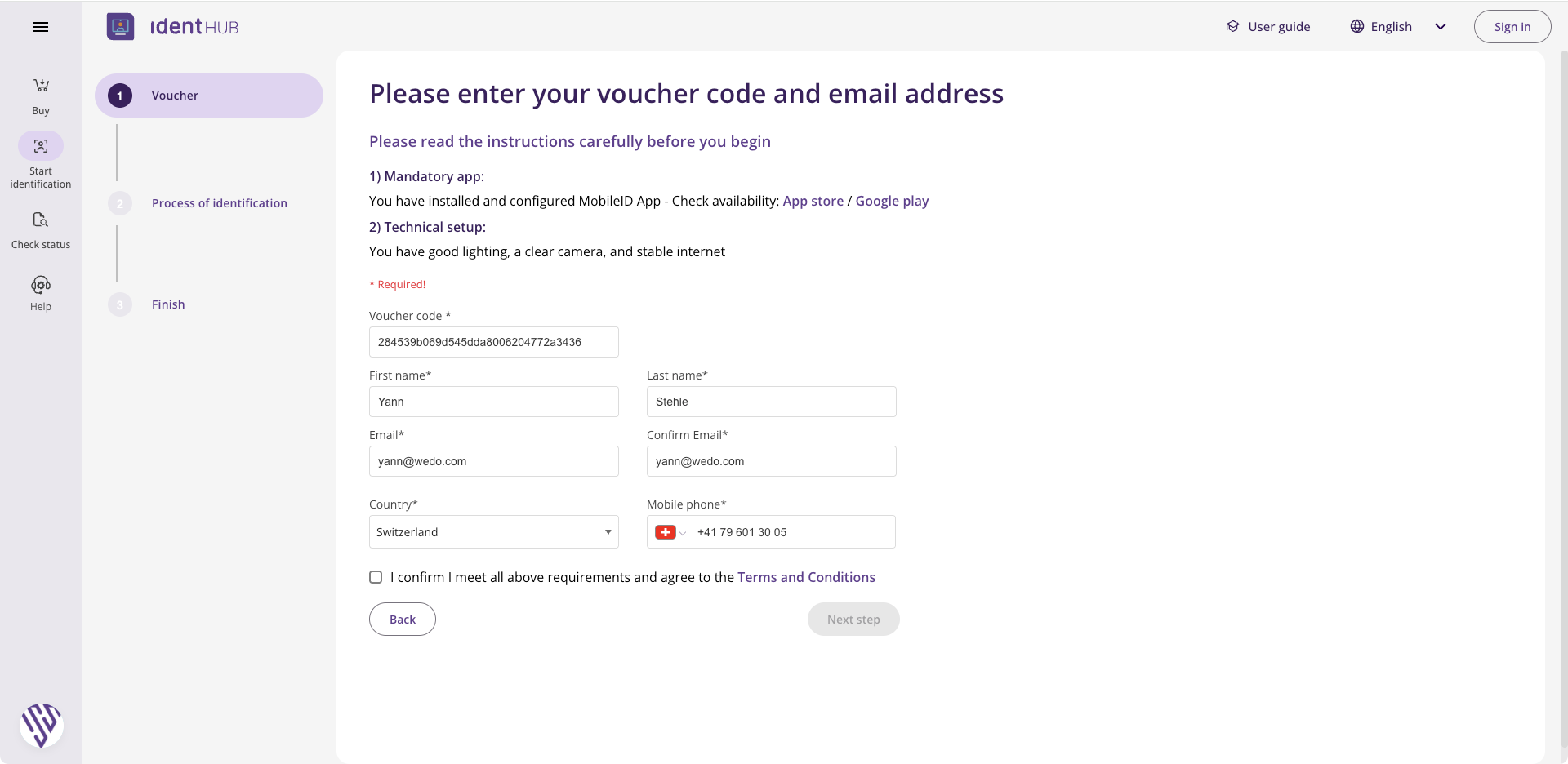
Check the Terms and Conditions acceptance box again, then click on "Next steps".
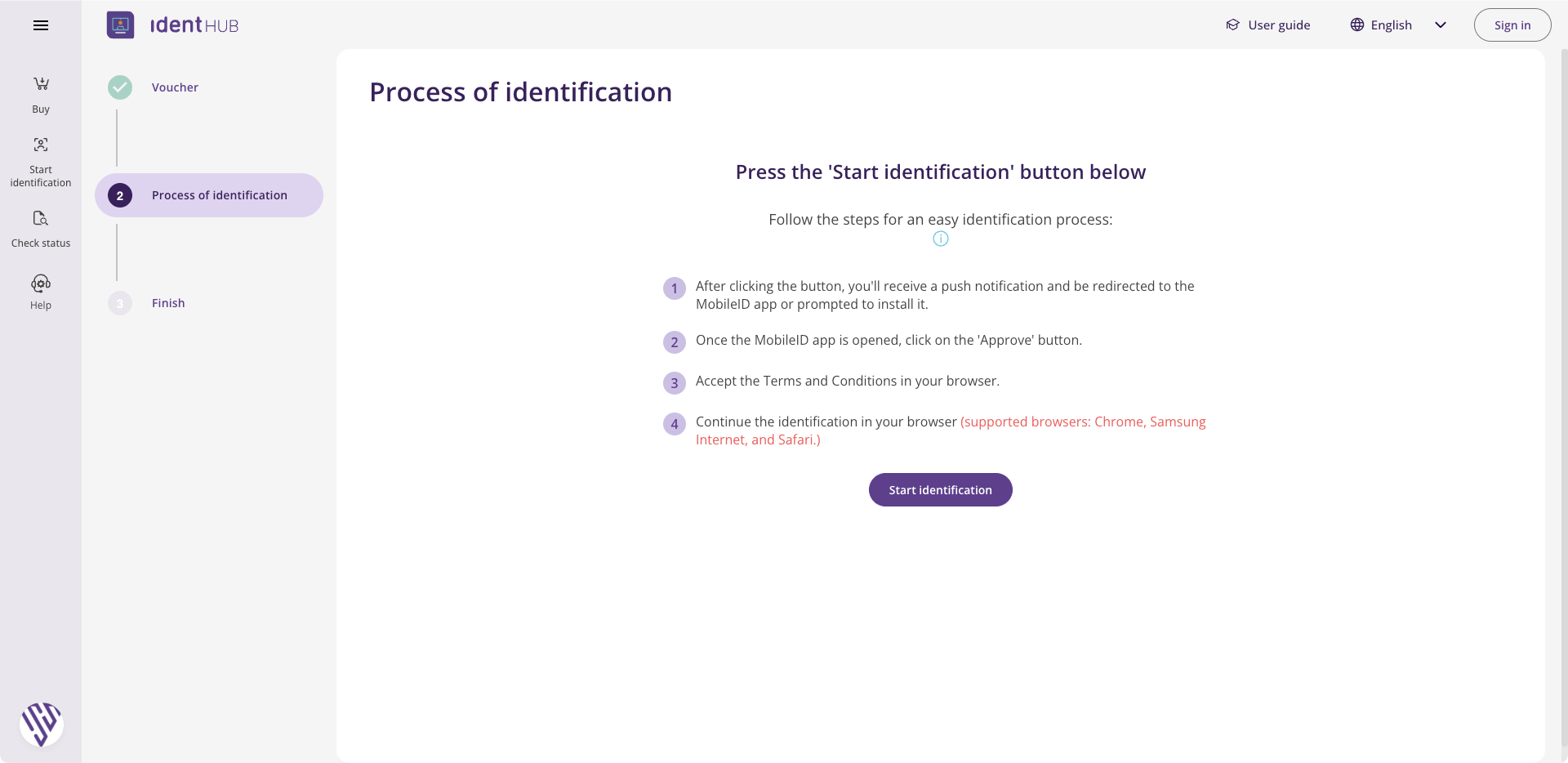
Then click on "Start identification".
Step 2: Mobile ID Initialization
⚠️ Make sure you have downloaded the Mobile ID app (available on the App Store or Google Play Store) and created your account by following the instructions on your smartphone. Once this setup is complete:
After clicking on "Start identification", you will be redirected to the Mobile ID web page.
Check the "I accept the General Terms and Conditions" box.
Click on "Next".
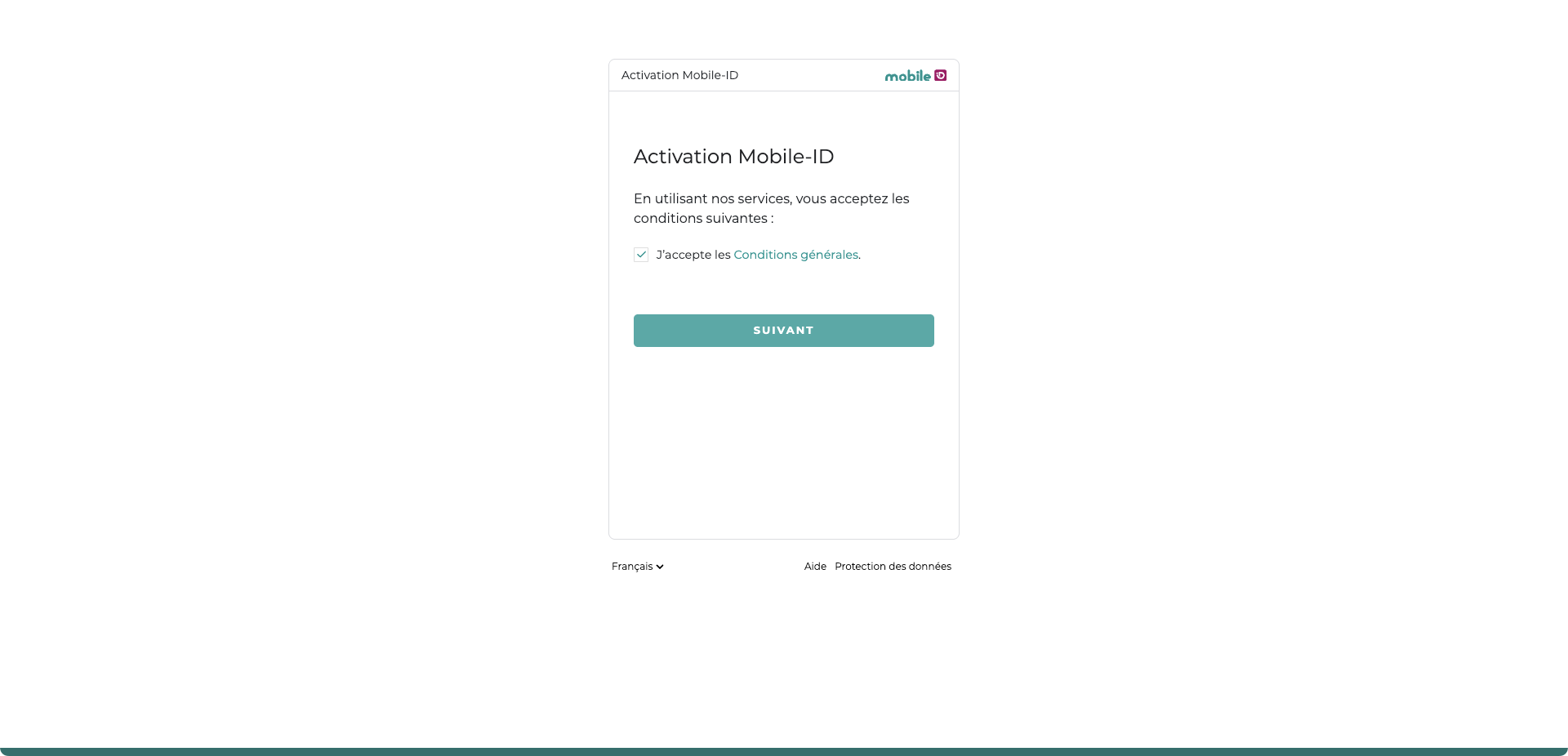
You may be asked to log in again on the web page or via your phone.
Accept the Swisscom Terms of Use:
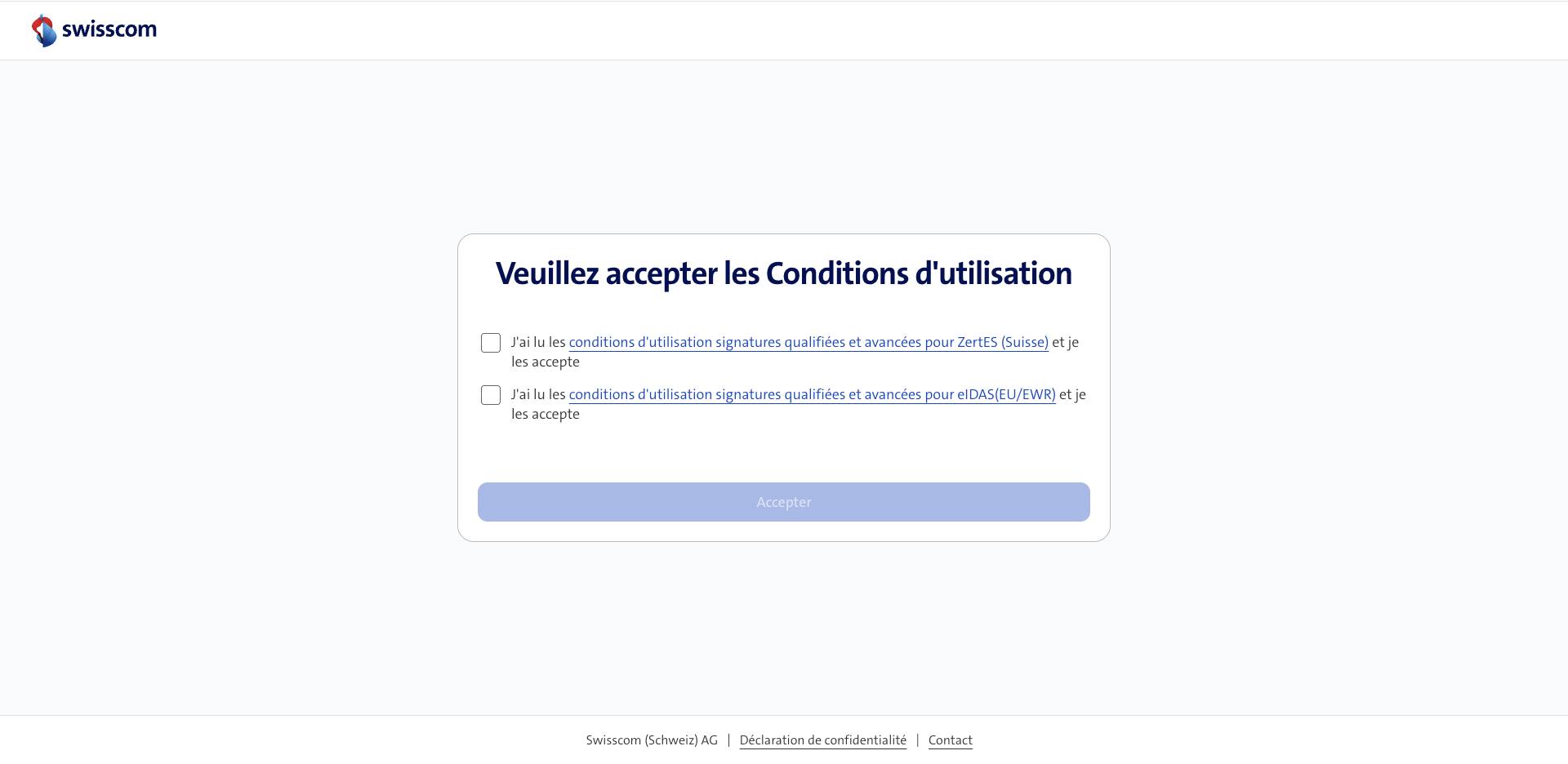
Read the on-screen instructions and have ready:
📱 Your mobile phone (with the Mobile ID app already set up).
🪪 A valid ID (passport or identity card).
Scan the QR code displayed on the screen with your phone.
Follow the verification steps (take a selfie and scan your ID).
⏳ Once these steps are validated, Swisscom will verify your data. The waiting time can be up to 3 minutes: do not leave the page and do not click on "Try again".
Congratulations, you're done! 🚀
You can now use Mobile ID to electronically sign all your meeting minutes with your qualified electronic signature.
