
Only administrators can manage the network settings.
Once the Compliance management add-on is part of your subscription, an administrator turns on file classification on the Security page of the organization settings, then adjusts the clearance of each user.
Turn on file classification
In the organization settings, click Security.
Turn on File classification.
Choose the Default classification (1):
Public: everyone, including external users, keeps access to every existing file;
Internal: external users lose access to every existing file.
Click Enable (2).
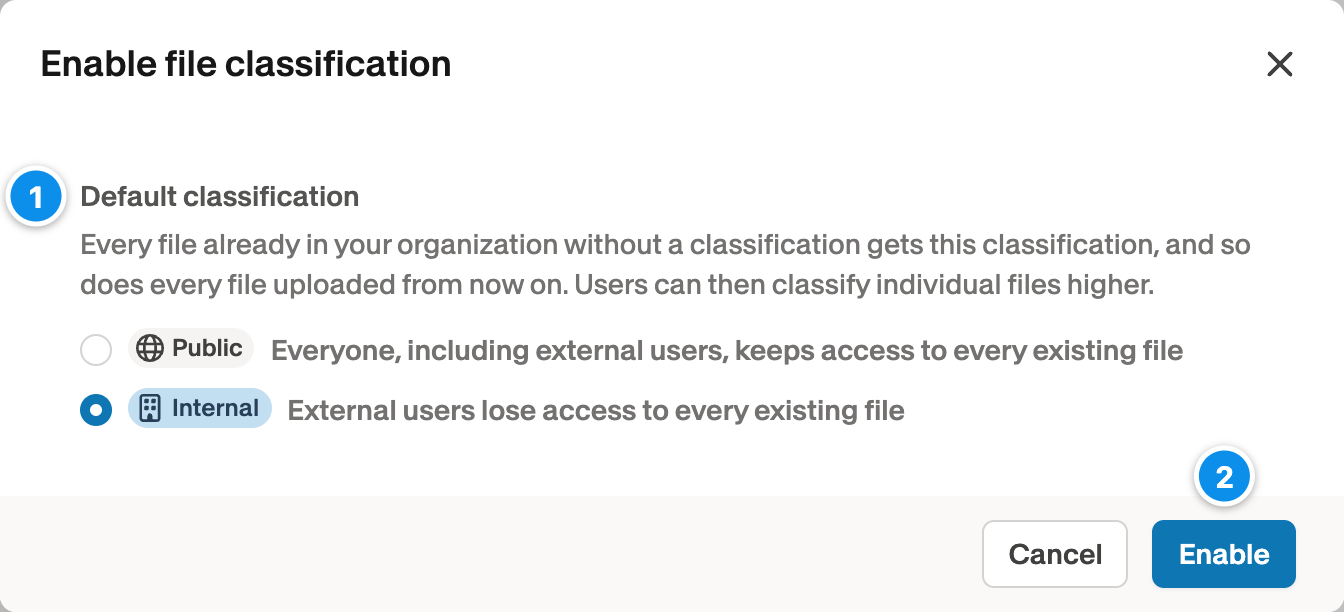
Every file that has no level yet gets the default classification, and so does every file added from now on. Every user gets the clearance of their type: Public for external users, Internal for users and Light users, Secret for administrators.
Change the default classification
Once classification is on, the Security page shows its switch (1) and the default classification, with a pencil (2) to change it.
On the Security page, click the pencil (2).
Choose Public or Internal.
Click Save.

ℹ️ Existing files keep their level. Only files added from now on get the new default classification.
Change a user's clearance
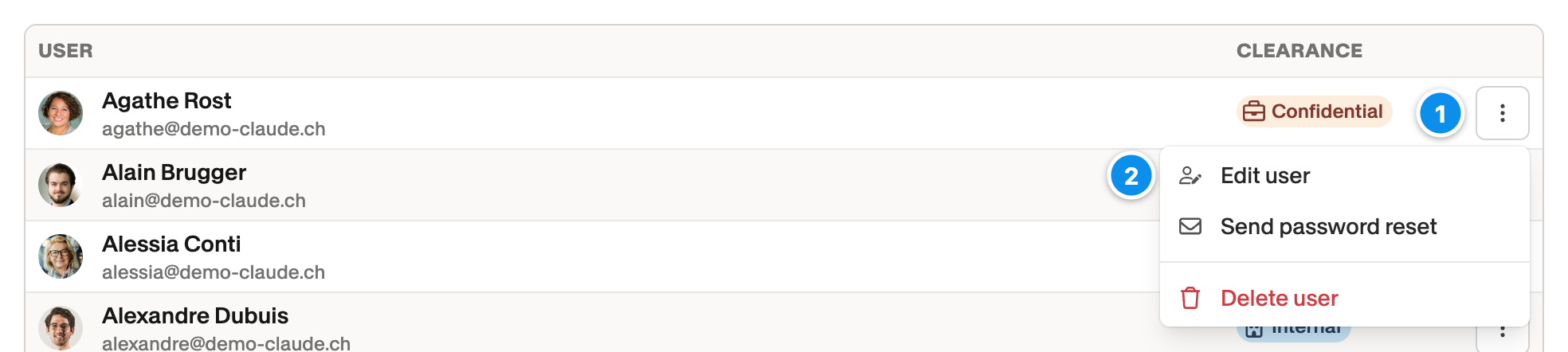
In the organization settings, click Users.
Click the three dots (1) to the right of the user, then Edit user (2).
Choose their level in Classification clearance (1).
Click Save.
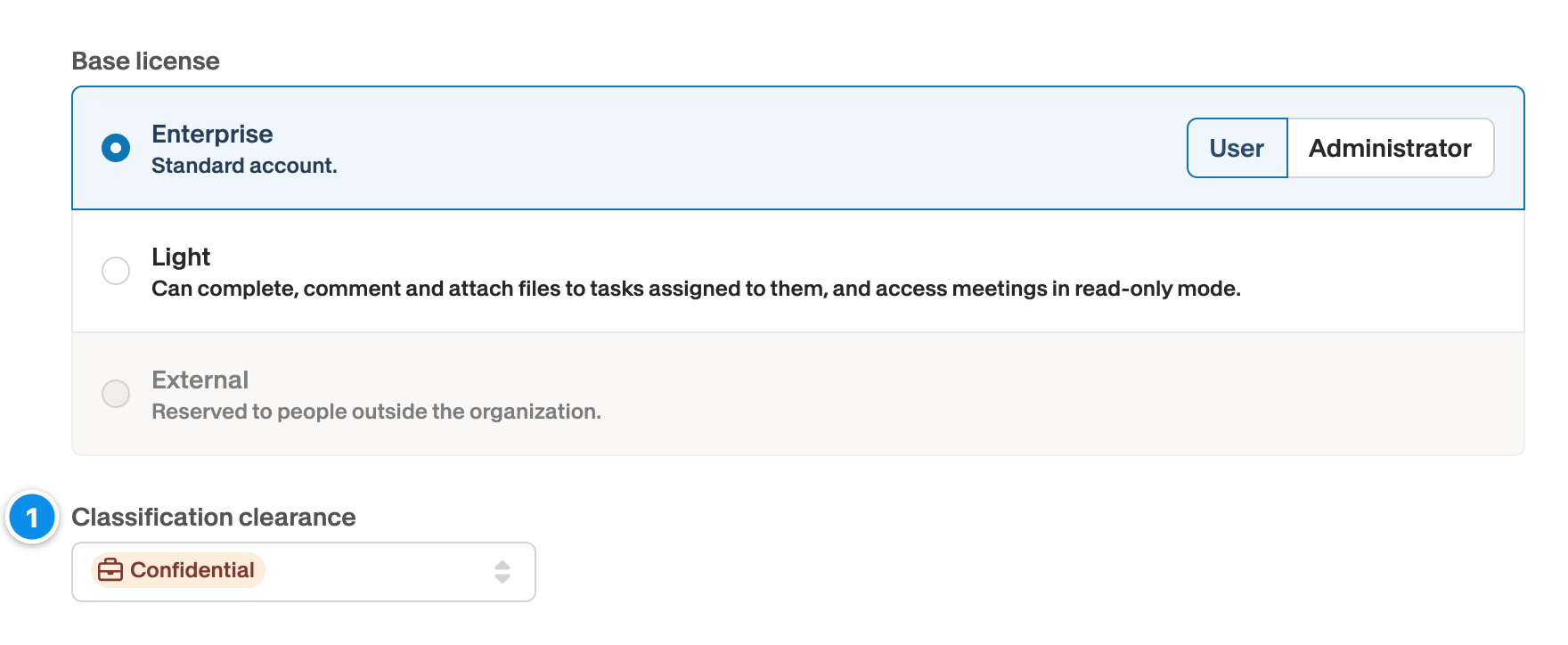
ℹ️ The clearance of external users is always Public. Changing the type of a user resets their clearance to the default of the new type. You cannot change your own clearance unless you are the only active administrator: ask another administrator. You can also set the clearance when you invite a user, or through the public API.
Turn off file classification
Turn off File classification, then click Disable to confirm.
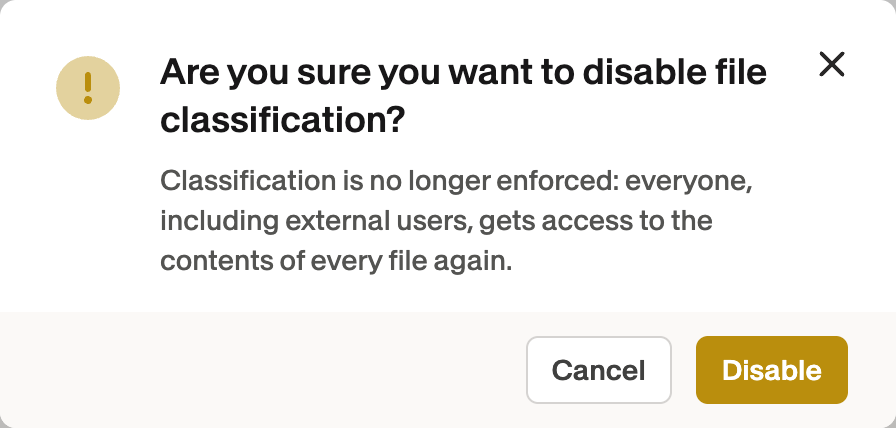
Classification is no longer enforced: everyone, including external users, gets access to the contents of every file again. The levels of files and the clearances of users are kept. If you turn classification on again, you choose a default classification again, which only applies to files without a level, such as those added in the meantime.
ℹ️ If your organization's security policy is managed by WEDO, file classification cannot be turned off and the default classification is fixed to Internal.
Every change on this page is recorded in the Audit trail.
