
Declassifying a file means making it Public. To prevent a sensitive document from leaving your organization by mistake, an administrator can require every declassification to go through your organization's compliance proxy.
Require a scan to declassify
Only administrators can manage this setting.
In the organization settings, click Security, then in the File declassification section, turn on Require a scan for declassifying (1).
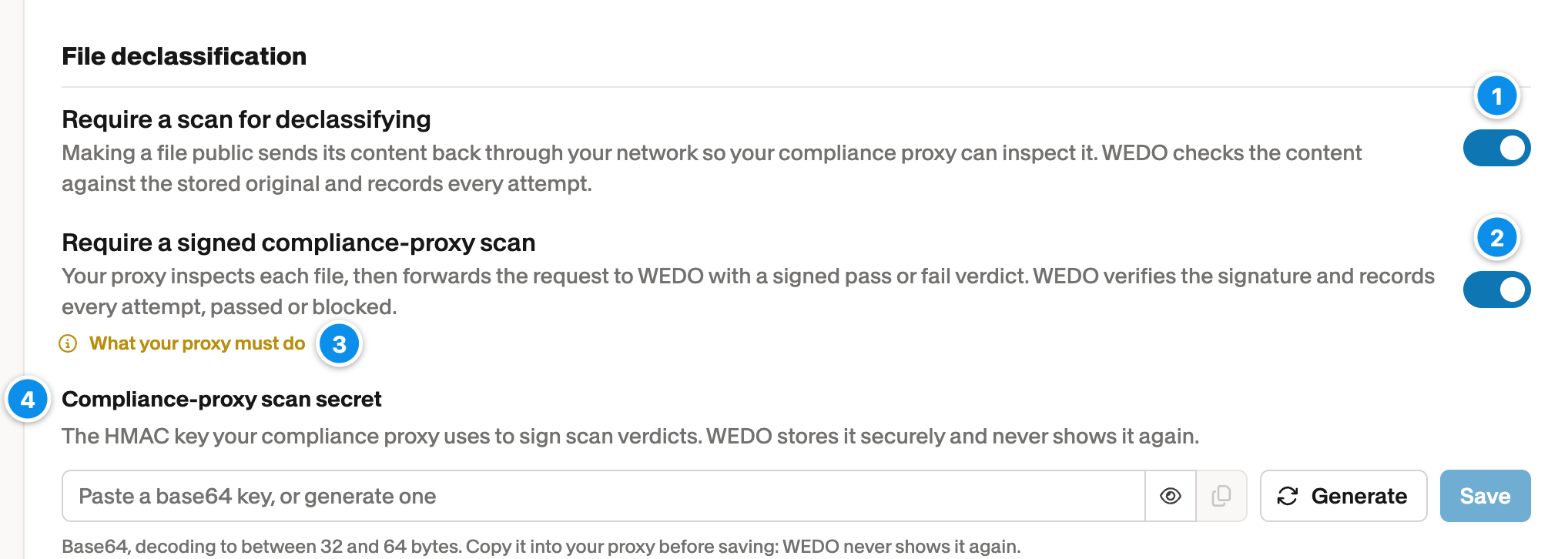
WEDO then sends the file's content back through your network, so that your compliance proxy can inspect it, and checks that the content matches the stored original. Files up to 50 MB can be declassified this way.
If your proxy adds a signed verdict to each scan, also turn on Require a signed compliance-proxy scan (2) and save a Compliance-proxy scan secret (4). WEDO only shows this secret once. The link What your proxy must do (3) describes the setup for your IT team. Until the secret is saved, signed declassifications are refused.
ℹ️ WEDO logs every attempt it receives. Without a signed scan, an attempt that your proxy blocks never reaches WEDO, so only your proxy records it.
Declassify a file
Choose the Public level for the file (see the article Classify a file) and click Make public.
WEDO retrieves the file, submits it to your compliance proxy, then removes its protection.
Click Done (1).
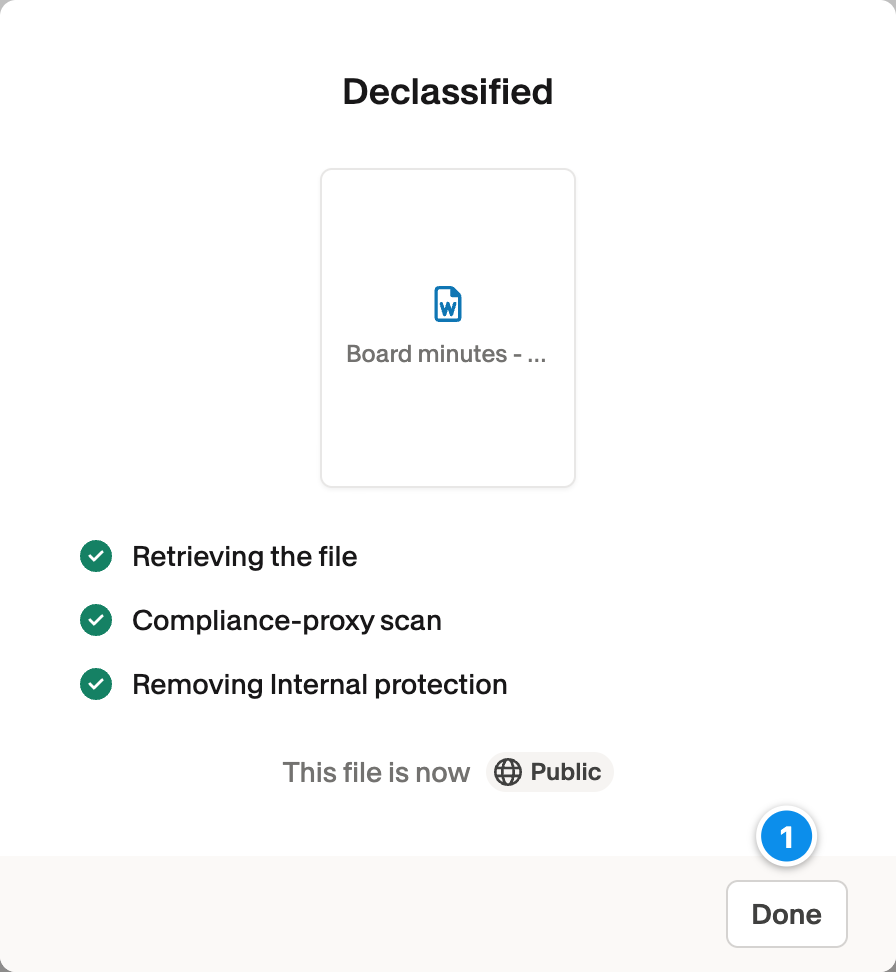
ℹ️ Only the current version of the file becomes public. Previous versions keep their level.
If the declassification fails
If your compliance proxy blocks the file or the scan cannot be completed, the declassification fails and the file keeps its level.
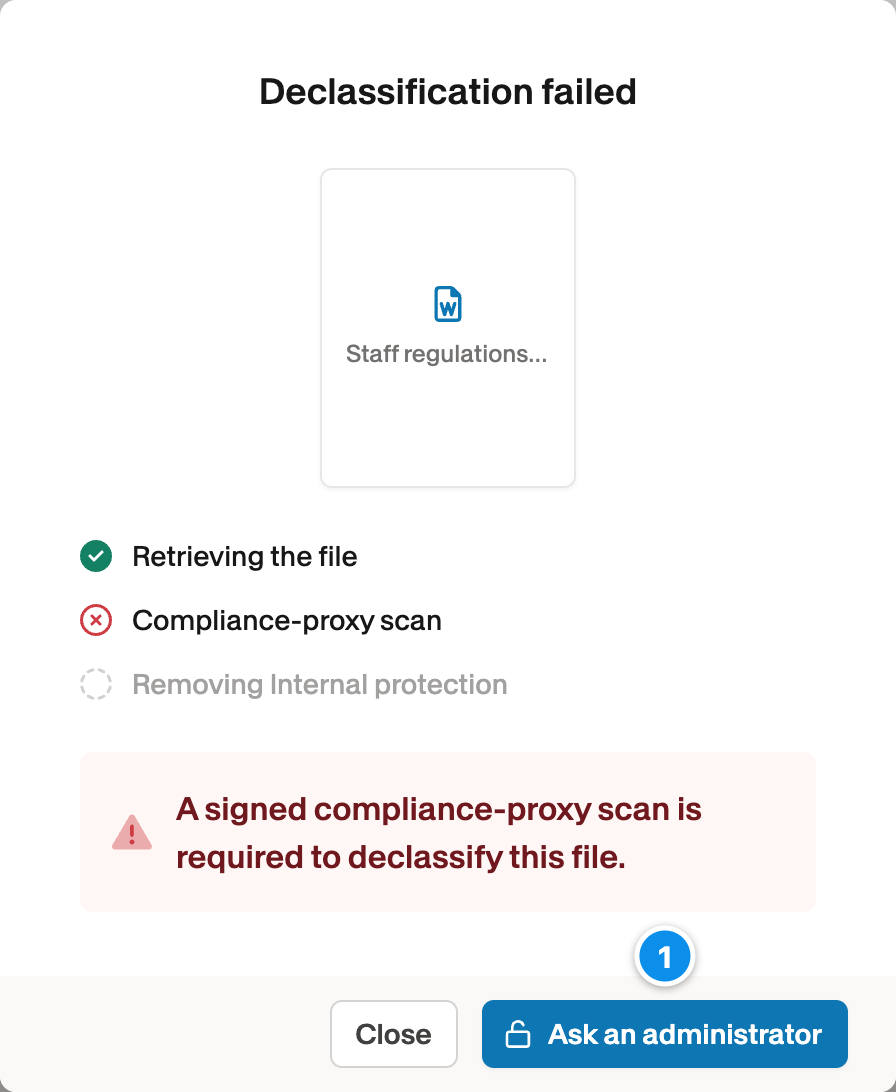
When the failure comes from the scan, you can click Ask an administrator (1):
Explain why the file should be public (1).
Under Notify (2), untick the administrators who should not be notified.
Click Send request (3).
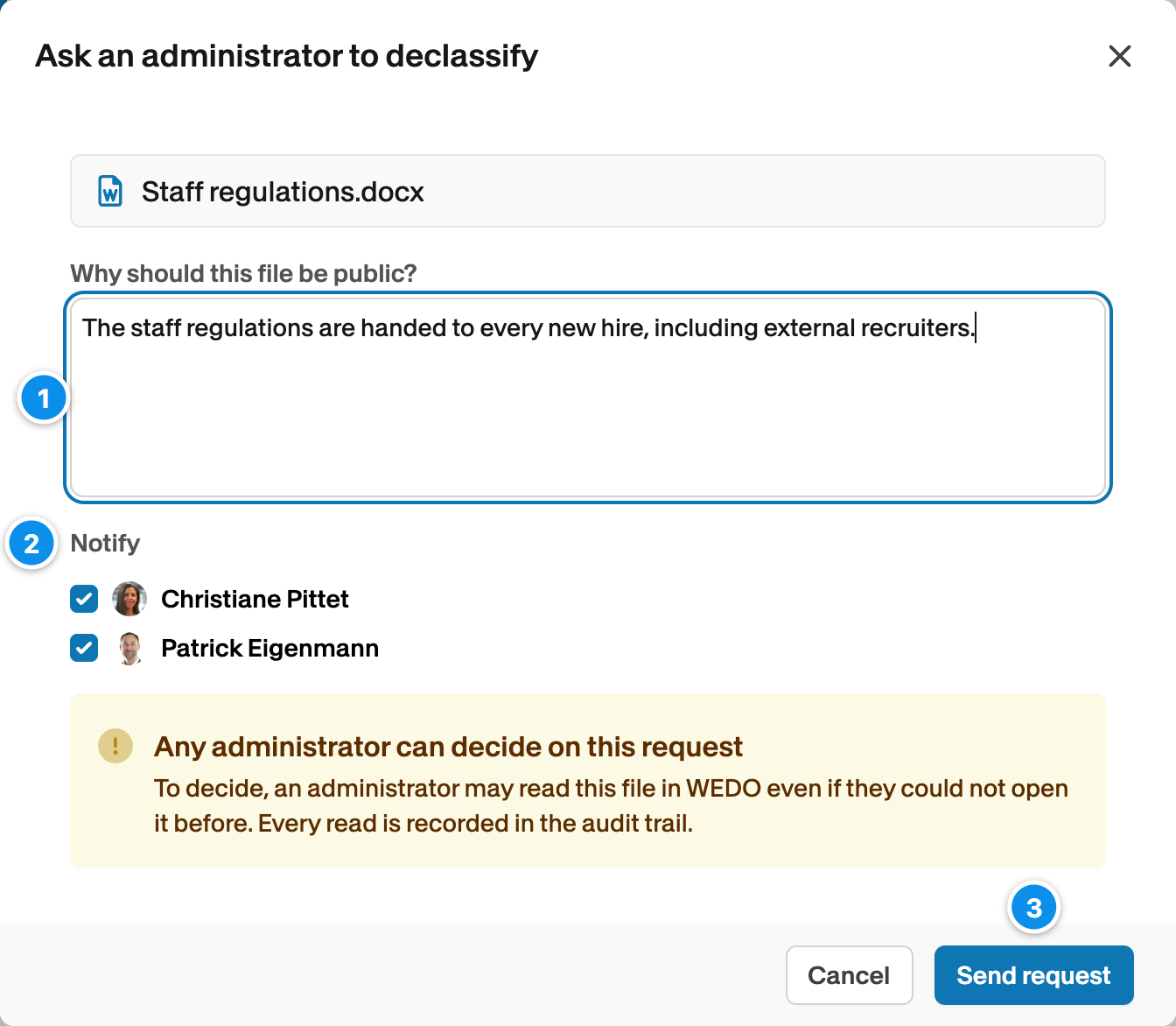
Any administrator can decide, not only those notified. You receive an email and a notification as soon as an administrator has decided. Light users and external users cannot send a request.
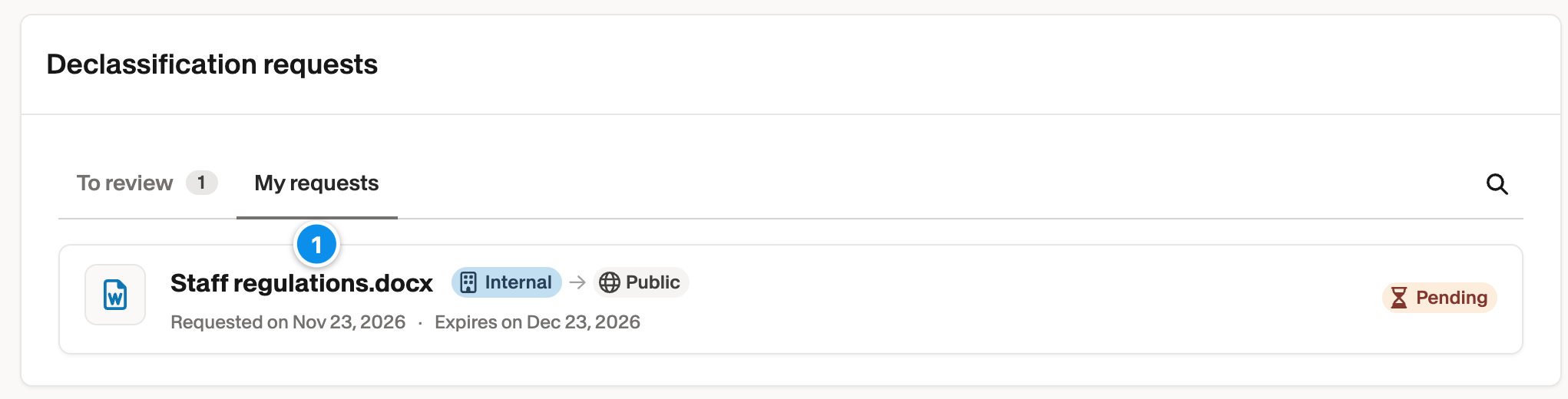
You can follow your requests on the Requests page of your settings, in the My requests tab (1).
Handle a declassification request
Only administrators can decide on a request.
Open the Requests page in your settings, To review tab.
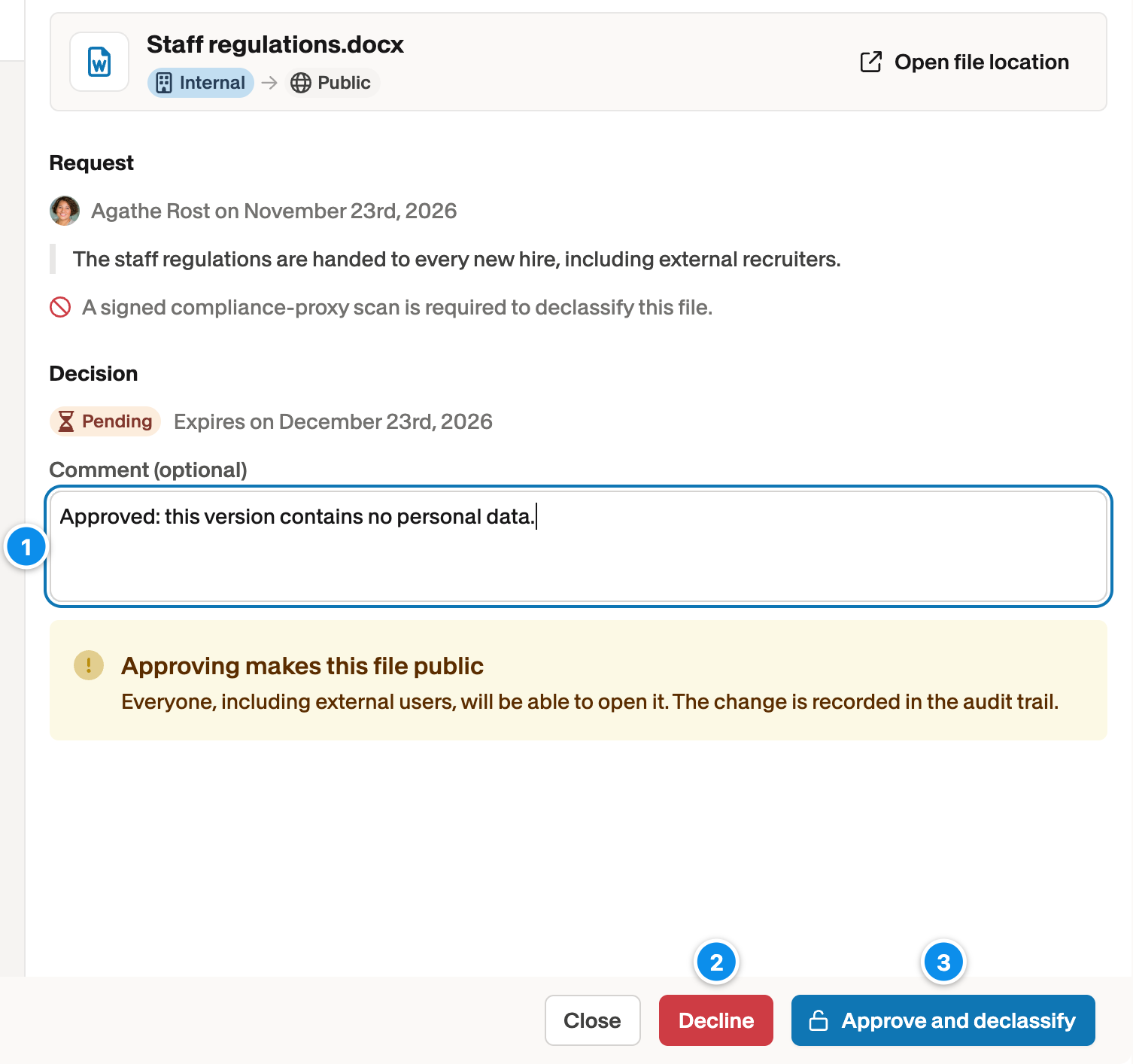
Click the request to see the file, the justification and the reason of the failure.
Add a Comment (optional) (1), then click Decline (2) or Approve and declassify (3).
ℹ️ To decide, an administrator can view the file in WEDO even if they could not open it before. Each view is recorded in the audit trail. An administrator cannot decide on their own request, unless they are the only active administrator. A request expires after 30 days, and closes by itself if the file gets a new version, changes level or is deleted.
